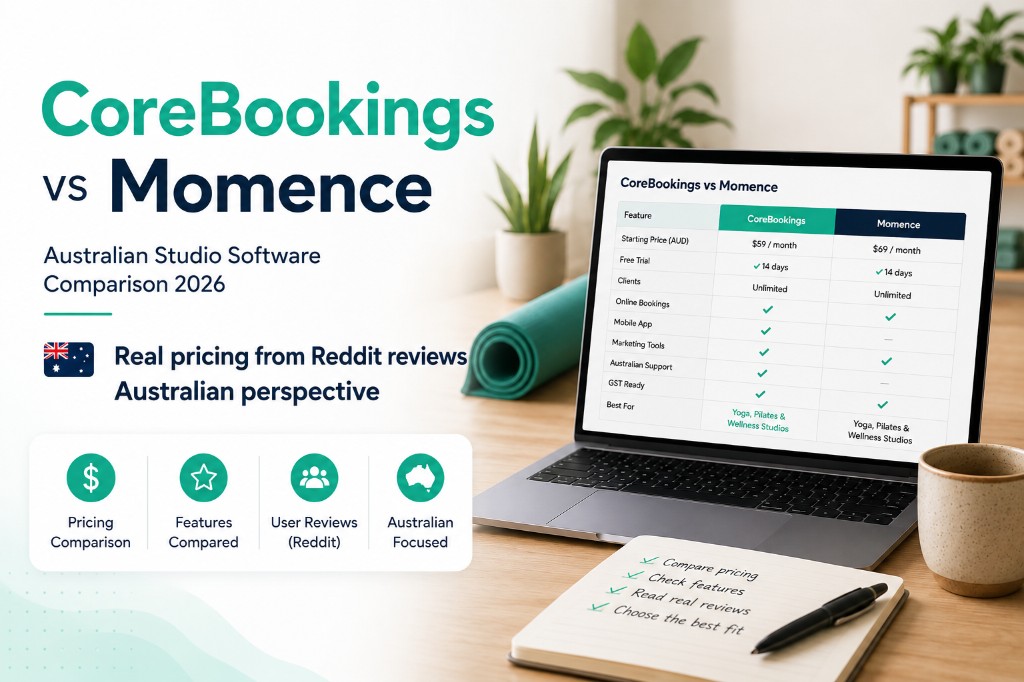
Straight Talk: CoreBookings is Australian-built, costs A$59-149/month (that's the real price), and you get local support. Momence? Based in the US, and according to actual studio owners on Reddit, you'll pay $250-300+ USD/month once you factor in what they don't tell you upfront.
That's around A$375-450+ every month. For Australian studios, CoreBookings will save you thousands per year. This comprehensive comparison covers transparent pricing, real costs, features, support, and everything you need to make an informed decision about your studio's booking software.
Compare Microsoft Teams with Zoom and Google Meet for live online yoga, setup tips, class formats, and when Teams is the better choice.
Benefits of Taking Online Yoga Classes at Home: Let’s understand why online yoga classes are growing so fast.
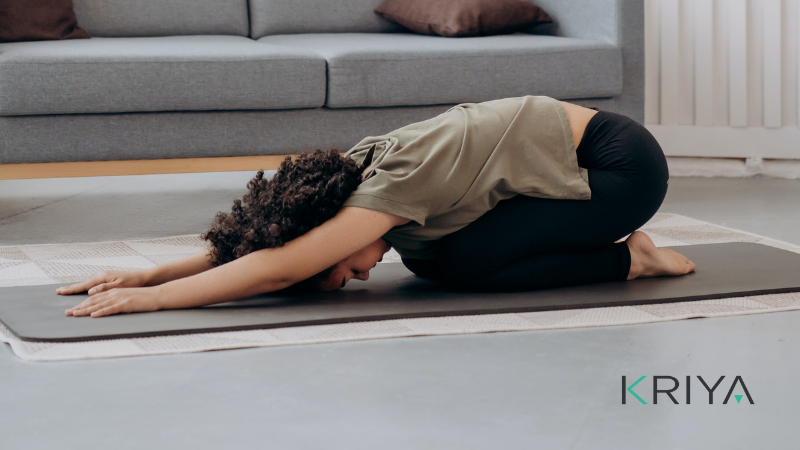
Practising yoga at home offers:
Convenience: No travel time. Roll out your mat and join instantly.
Flexibility: Choose morning, afternoon, or evening classes that fit your routine.
Comfort: Practice in your own space without feeling self-conscious.
Cost-Effective: No commute, no studio fees, and often lower subscription costs.
Consistency: It’s easier to stay committed when yoga is just one click away.
For many people, this convenience leads to more regular practice, which means faster results.
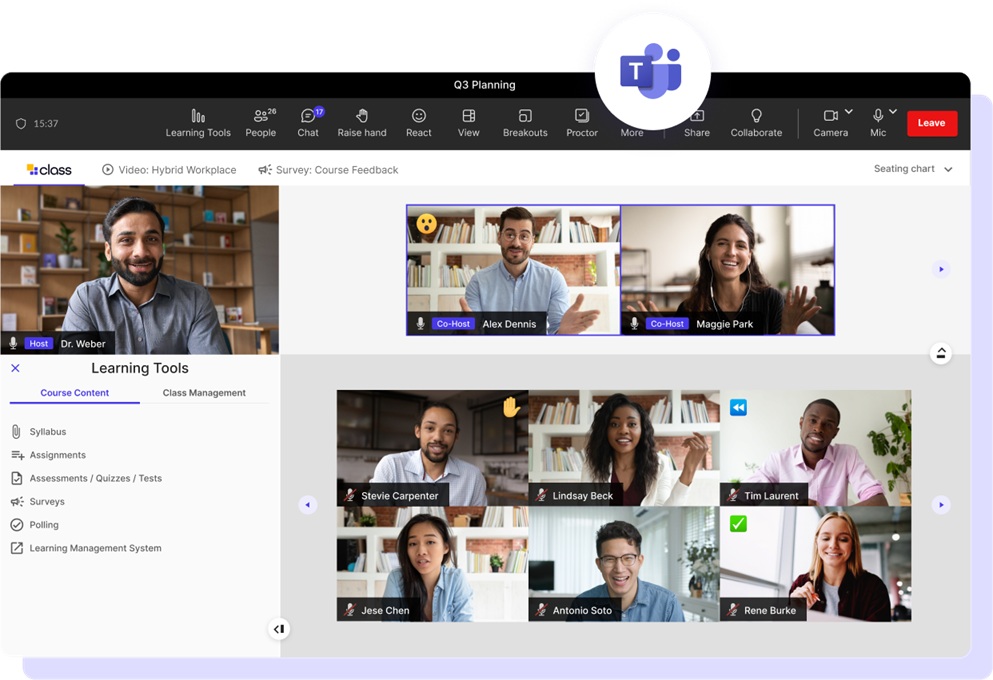
With platforms like Microsoft Teams, you can now attend live, interactive yoga classes from home while still enjoying guidance from professional instructors and the motivation of a group.
If you’re wondering how to take online yoga classes with Microsoft Teams, this detailed guide will walk you through everything, from setting up your device to joining classes smoothly and getting the most out of every session.
Also, find which is best to use – Google Meet, Zoom Or MS Teams?
While Microsoft Teams has over 320 million daily active users as of 2026, though not as popular as Zoom. But first, let’s see how Teams works as an alternative to the bygone Skype.
Taking Online Yoga Classes with Teams
Whether you’re a beginner or an experienced yogi, this step-by-step approach will help you build a consistent, comfortable, and effective virtual yoga practice.
Why Choose Microsoft Teams for Online Yoga Classes?
When people think of Microsoft Teams, they often associate it with office meetings. But it’s actually one of the best platforms for live online yoga classes because of its reliability, video quality, and ease of use.
Here’s why many yoga studios and instructors now host classes on Teams:
1. Stable Video & Audio: Microsoft Teams offers strong video performance even on moderate internet connections. This means fewer interruptions during your yoga session.
2. Live Interaction: You can see your instructor, receive real-time cues, ask questions, and even get alignment feedback — just like an in-person class.
3. Works on Any Device: Teams work on:
Laptop
Desktop
Tablet
Smartphone
Smart TV (via casting)
This flexibility makes it easy to practice yoga anywhere.
4. Easy Scheduling: Classes can be added directly to your calendar with one click. You’ll never forget a session again.
5. Secure & Private: Sessions are invite-only, keeping your class environment safe and distraction-free.
Step-by-Step: How to Take Online Yoga Classes with Microsoft Teams
Ms Teams – Class Instructors
Let’s break it down into simple steps so you can get started today.
Step 1: Download Microsoft Teams
First, install the Microsoft Teams app.
You can:
Download the desktop app for Windows or Mac
Install the mobile app for iOS or Android
Or use Teams directly in your web browser
Using the desktop or mobile app gives the best video experience.
Create a free Microsoft account if you don’t already have one.
Step 2: Choose how you want to run your class
Teams gives you two good formats if you are a yoga teacher:
Option A — Meeting (best for live interactive classes)
Use this for:
Regular weekly classes
Small groups
Workshops
Private sessions
Students can talk, ask questions, and you can see everyone.
Option B — Webinar (best for larger classes)
Use this for:
20+ students
Events
Paid workshops
When you don’t want participants to interrupt
You control mics/cameras more easily.
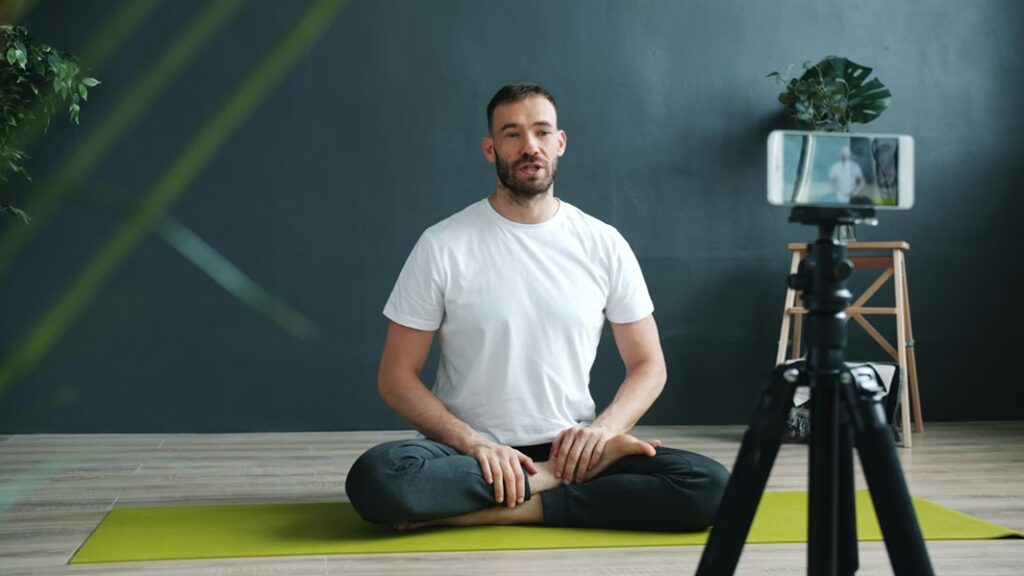
Step 3: Set Up Your Yoga Space
A comfortable environment improves your focus and safety.
If your focus is maximum simplicity for students, Zoom and Google Meet may have an edge here.
ZOOM
Zoom is generally considered the easiest to use, especially for beginners and casual users.
Joining a meeting is straightforward — click a link and enter, without needing a registered account.
This simplicity is why Zoom became the go-to choice for many online teachers early on.
Google Meet
Google Meet is also simple, especially if students use Gmail or Google Calendar — meetings can be joined without app installs via browser.
Its minimalist interface makes it easy for beginners.
MS Teams
Teams has a steeper learning curve due to its richer interface and features.
It’s not initially as intuitive for new users, especially those familiar only with simple video calls.
2. Video & Interaction Tools
This is crucial for online yoga because students need to clearly see poses and interact.
Zoom is great for interactive features, Teams balances video with collaboration tools, and Google Meet is more basic.
ZOOM
Excellent video quality and performance even on lower bandwidth
Polls, breakout rooms, whiteboards, and annotation tools (very helpful for group classes and workshops)
Remote control and screen sharing are strong tools if you teach sequences, slides, or videos during class
Google Meet
Basic screen sharing and layout controls
Does not have breakout rooms or robust whiteboard tools without third-party add-ons
Microsoft Teams
Screen sharing and collaborative whiteboard via Microsoft Whiteboard
Offers Together Mode and various layout options that can make group classes feel more connected
Integrates meeting chat, notes, and recording — useful for yoga classes and content sharing afterward
3. Participant Limits & Duration
Most online yoga classes are small to medium groups, but it’s worth knowing limits. For longer classes without interruptions, Teams (with a paid subscription) and Zoom are better than Google Meet’s free limitations.
Paid plans remove time limits and allow larger groups — great for longer sessions or workshops
Google Meet
Free version allows up to ~60-minute meetings (varies by plan)
Paid plans extend duration and participant counts
MS Teams
Free meetings commonly allow 60 minutes
Paid Microsoft 365 plans enable sessions up to ~30 hours and larger group events — ideal for longer yoga programs or events
4. Security & Privacy
Security is important not just for businesses as it matters for the privacy of class participants too. Teams stands out if security and privacy are top priorities, especially for paid classes and registered students with accounts.
MS Teams
Microsoft Teams offers strong enterprise-level security, multi-factor authentication, and integration with Microsoft 365 compliance tools
ZOOM
Zoom has vastly improved its security over the years with waiting rooms, passcodes, and encryption.
Google Meet
Google Meet uses Google’s secure infrastructure and encryption in transit
5. Scheduling & Integration
If you run a structured class schedule with recurring sessions, Teams and Zoom provide stronger scheduling features; Google Meet works best if you’re already in the Google ecosystem.
MS Teams
Deep integration with Microsoft 365 — Outlook, calendar invites, Teams scheduling, shared files, and chat
Helpful if you also share yoga plans, notes, or recordings as a business.
ZOOM
Easy scheduling and calendar integration with Google, Outlook, and others
Can automate links with scheduling tools like Calendly or fitness platforms.
Google Meet
Seamless calendar integration with Google Workspace — very convenient if your students use Gmail/Google Calendar
6. Teaching Experience & Classroom Control
For interactive teaching, like providing feedback on posture or managing student audio and some platform features matter more. Zoom may offer easier in-class controls, but Teams shines when you want collaboration before, during, and after class.
ZOOM
Quick and intuitive host controls
Breakout rooms help segment students for smaller group coaching
Annotation and screen sharing allow creative lesson plans
MS Teams
Persistent chat, co-editing, and collaboration tools add value beyond class time
Allows document sharing and content management inside the platform.
Google Meet
Simpler but without advanced classroom controls unless linked with other tools
So, Which Is Best for Online Yoga Teaching?
Category
Best Option
Ease of Use (for students)
Zoom / Google Meet
Interactive Teaching Features
Zoom
Integrated Classroom & Collaboration Tools
Microsoft Teams
Security & Privacy
Microsoft Teams
Longer Class Duration
Teams / Zoom (paid)
Simple Free Solution
Google Meet
Best Overall for Yoga Teachers
Zoom — Best if your priority is simplicity, interactive tools (breakout rooms, whiteboard), and a familiar user experience.
Microsoft Teams — Taking Online Yoga Classes with Teams is best if you want professional class management, deep integration with schedules and documents, enhanced privacy, and a unified workspace for lessons and materials.
Google Meet — Best for casual or small classes when you want a simple, browser-based solution without extra installs.
No single platform is universally “best” as each excels in different areas:
Zoom is ideal for quick setup and rich interactive features
Microsoft Teams wins when you want a full ecosystem for class management and security
Google Meet works well for straightforward sessions with minimal complexity
Your choice depends on your teaching style, class size, budget, and how much integration you want with scheduling or collaborative materials.
Finally, Learning taking online yoga classes with Teams or with Zoom is simple, convenient, and incredibly rewarding. With just a device, internet connection, and yoga mat, you can enjoy professional instruction, community support, and the full benefits of yoga, right from your home.