Introducing CoreBookings by KRIYA. Same team. More power. Learn more →
View Categories

Adding New Member Deals and Intro Passes in the Dashboard

CoreBookings lets you sell discounted welcome passes and staff-only deals from SettingsPasses & Memberships. Use Intro / welcome pass settings for new-client offers, or set Visibility to Hidden when a pass should only be sold at the desk.

Short answer #

  • Where: SettingsPasses & Memberships
  • Intro offers: one-time passes with optional purchase limits and new-client-only rules
  • Hidden passes: not shown to clients online; staff can still sell them in POS
  • Quick start: use the Intro offer template when creating a pass

Create an intro offer pass #

  1. Open SettingsPasses & Memberships.
  2. Click + Create Pass.
  3. Click Intro offer to prefill a welcome pass, or enter the name, price, visits, and expiry yourself.
  4. Turn on Intro / welcome pass if you did not use the template.
  5. Set Maximum purchases per client (usually 1 for a one-time trial).
  6. Turn on Only for new clients at this studio if the deal is for first-timers only.
  7. Leave Visibility on Public so clients can buy online, then click Create Pass.
CoreBookings Passes settings filtered to Intro Offers
Filter to Intro Offers to review welcome passes at a glance
CoreBookings Create New Pass dialog with Intro welcome pass settings
Use the Intro offer template or toggle Intro / welcome pass when creating a pass

Limit purchases per client #

Maximum purchases per client controls how many times the same client can buy that pass template. Set it to 1 for a true one-time intro pass (for example, a single free trial or welcome week).

CoreBookings enforces this when clients buy in the app or on your public checkout, and when staff sell the pass at POS.

Only for new clients at this studio blocks the purchase if the client already has, or has ever had, any pass or membership with your studio. Turn this on for genuine new-member deals.

Intro offers apply to one-time passes only. Recurring memberships cannot be marked as intro offers.

Hidden passes for in-person deals #

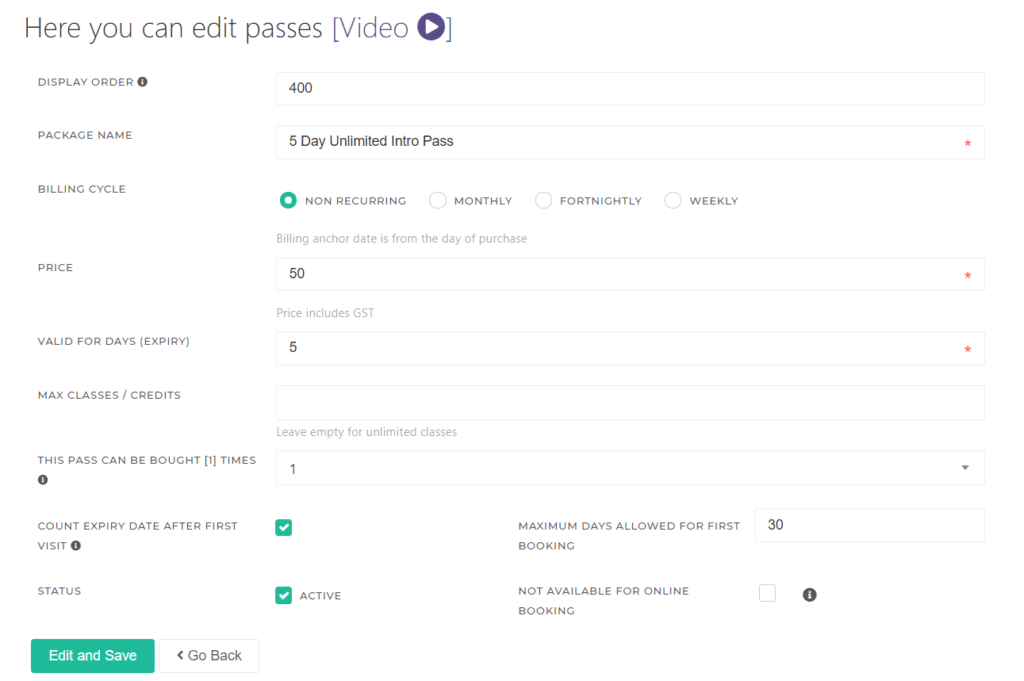
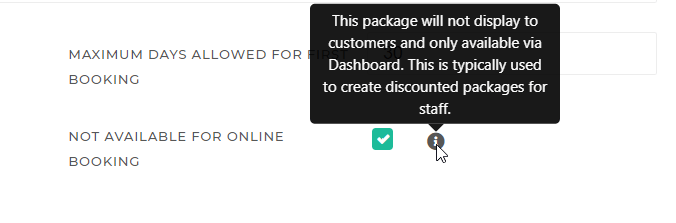
For member deals that should not appear online, set Visibility to Hidden – Internal use only when you create or edit the pass.

Hidden passes do not show in the client app or public pass shop. Staff can still sell them at POS or add them to a client profile from the dashboard.

Use hidden passes for negotiated in-person deals, complimentary passes, or offers you do not want advertised online.

Related help #