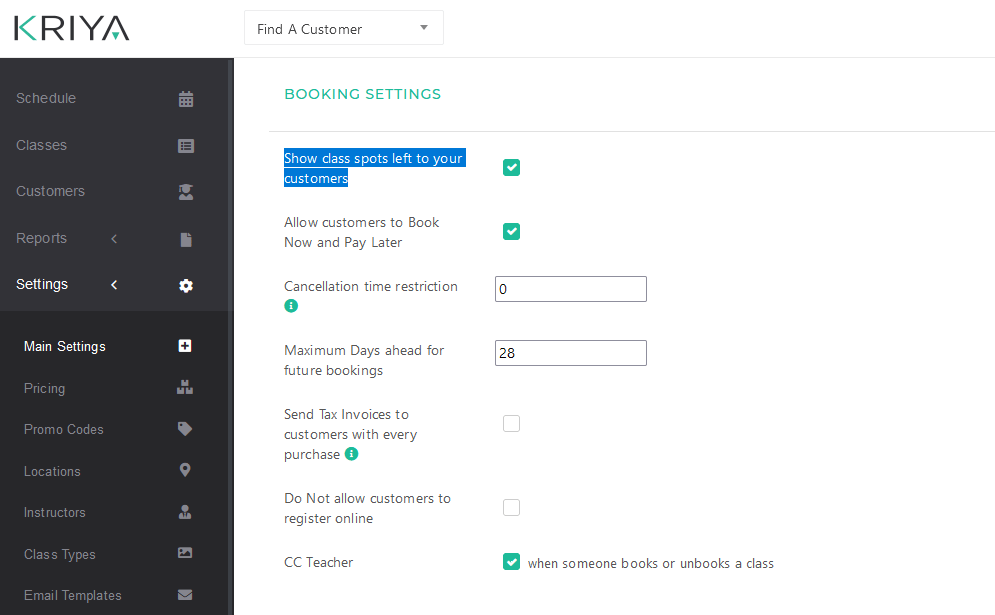
CoreBookings lets you show or hide how many spots remain on each class. By default, clients see capacity information in the client app and on your public schedule. Turn it off if you prefer not to display how full a class is.
Short answer #
- Where: Settings → Client app → Class capacity visibility
- Toggle: Show capacity and spots left
- On (default): clients see spots remaining (e.g. “3 spots left”) when booking online or in the app
- Off: clients do not see class capacity or spots remaining on the public schedule or in the client app
- Click Save settings after changing the toggle
Change the setting #
- Open Settings in the left menu.
- Select Client app.
- Scroll to the Class capacity visibility card.
- Turn Show capacity and spots left on or off.
- Click Save settings.
This is a studio-wide setting. It applies to all classes on your public schedule and in the CoreBookings client app.

What clients see when hidden #
When the toggle is off, clients no longer see:
- How many spots are left on a class
- Room or class capacity numbers on the booking schedule
Clients can still browse the timetable and book available classes. Full classes continue to respect your capacity limits; clients simply will not see the remaining spot count.
Some studios hide spots to avoid showing which classes are quiet. Others leave it on so clients can see popular sessions filling up. Either approach is fine.
What staff still see #
Hiding capacity from clients does not change what staff see in the dashboard. On Class Schedules and class detail pages, you still see how many clients are booked and the class capacity (for example, 5 / 20 booked).
To change how many people can attend a class, edit room capacity or override capacity on a specific class. See How does class capacity and room capacity work?