KRIYA Booking System has a Transactions Report feature to quickly view transactions made at your business. The report provides options like viewing, receipt and creating Invoices.
Includes an All-In-One Search Function.
Provides advanced feature sets like data exporting with various parameters.
To view the All Transactions Report #
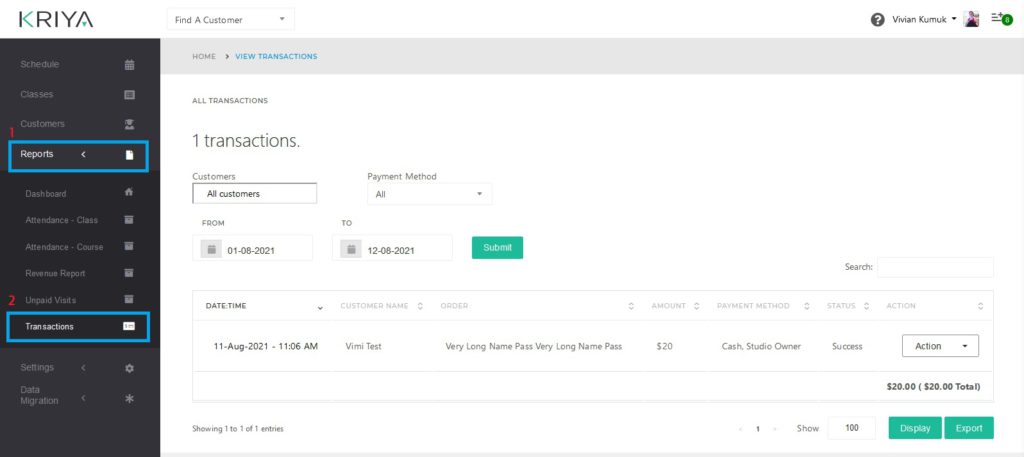
- Log in to—KRIYA—and click on—Reports—on the left Main Menu.
- Click on Transactions to view all the transactions.
Filters and Options to View and Manage Reports #
Transaction Report has many filters to help Businesses View and Export Data in various combinations of parameters to fulfil specific Business management criteria by tracking transactions.
Tracing transactions will help with business financial assessments and other business needs.
So, let us see all the filters we can use to obtain a particular list of transactions that fit our needs.
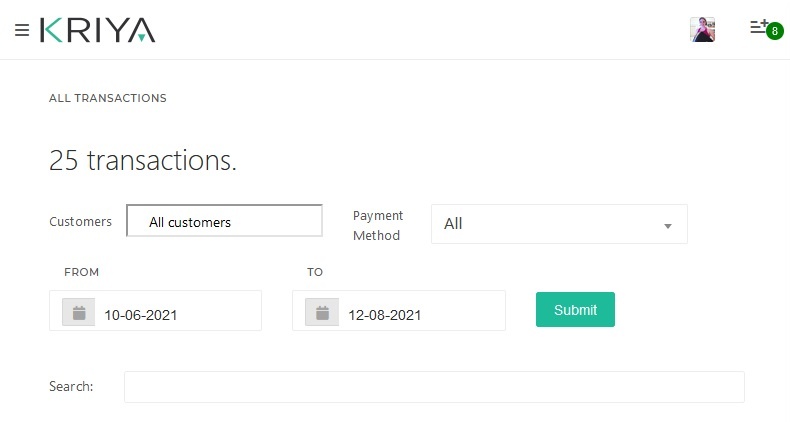
- Customers: Select/Filter from the List of Customers you have in your Business.
Only Customers who have transacted between the Selected dates in the “Form” and the “To” Date Table will be shown here. Please select any one of them to view only their transactions. - Payment Method: Select the Payment Method such as Credit Card / Cash / Bank Transfer. Selecting anyone will list all the transactions that happened through that method.
- From & To: Select the dates From when and when you want and click on the—Submit—button to view the transactions that took place on those—dates. It includes transactions made on those two dates.
Example: If I want to see all the transactions made between 1 Jan to 10 Jan 2021, I will select 1 Jan 2021 in the From Date Table and 10 Jan 2021 in the To Date Table and click the Submit button. - Search:—Here, you can search for anything related to transactions, like the amount, the transaction status, or the pass that was bought.
Example: If I want to see all the transactions made for a particular pass, like Hatha Yoga Advance Course. I will type “Hatha Yoga Advance Course” in the search box.
Transactions List Data Columns #
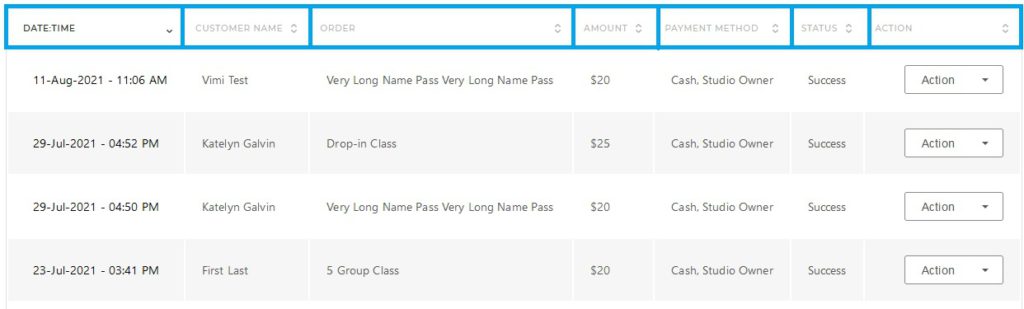
KRIYA has eight relevant data columns for each transaction. Let us see which are those.
- Date & Time: This column shows when the transactions were made.
- Customer Name: Has the names of customers who transacted with your Business.
- Order: This shows what was bought through that transaction, like Passes & Subscriptions.
- Amount: This will show the Amount paid in that transaction.
- Payment Method: This will show the mode of payment. It can be Cash / Credit Card, etc.
- Status: This column will show whether the transaction was successful or failed.
- Action:—This Column has an—Action Button—for each transaction made, where you can—View, Send—a Receipt—& send an—Invoice—to the customer.
The view option will take you to the Customer Details Page of the customer who made the transaction.
Receipt and Invoice options will show a Pop-Up asking If you sent the Receipt / Invoice to the Customer. Select Send to send that Transaction’s Receipt / Invoice & Click on Close to close the Pop-Up. - Transaction ID: Shows the unique transaction ID of each transaction.
Export, Display and Show Options #
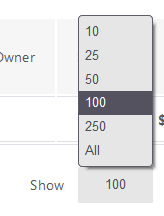
- Show: Select the number of rows you want to display on the current page of transactions. The default is 100 rows; You can Select from “10” to “All” transactions to show on a single page.
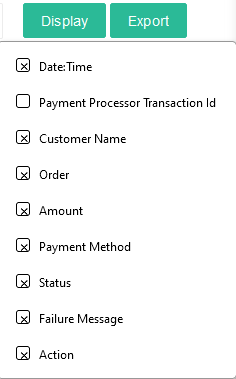
Understand that the more rows there are, the more time it will take to load. - Display: It has all the 8 Transactions Columns listed. Check/Select the columns relevant to you so that no unnecessary information is loaded for a clean look.
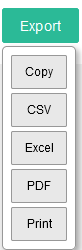
- Export: This will let you download all the transactions loaded with applied filters. You can copy—and download the list in—CSV,—Excel,—or PDF—format or print directly.
Remember, only the data shown on all the pages will be exported, copied, or printed.