Introducing CoreBookings by KRIYA. Same team. More power. Learn more →
View Categories

How to sell or give a pass to a client

You can sell or give any active pass or membership to a walk-in or existing client from the CoreBookings dashboard. Sales go through Point of Sale (POS)—from the client profile, the header POS button, or when adding a client to a class.

Short answer #

  1. Open Clients and open the client.
  2. Click Sell Pass.
  3. Select a pass or membership under Passes & Memberships.
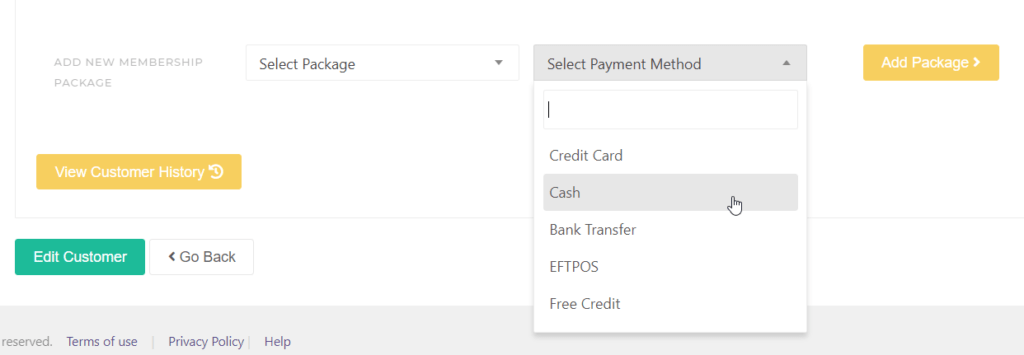
  4. Choose a Payment Method (use Free to give a complimentary pass).
  5. Click Sell for … to complete.

The pass appears under Active Passes on the client profile and can be used for bookings.

Open the client #

Where: Clients

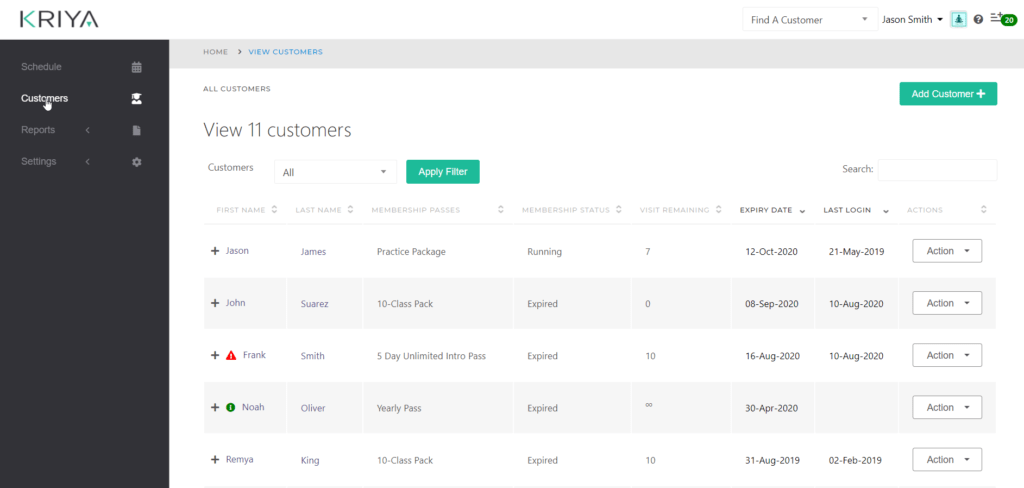
  1. Open Clients in the left sidebar.
  2. Search or scroll to find the client.
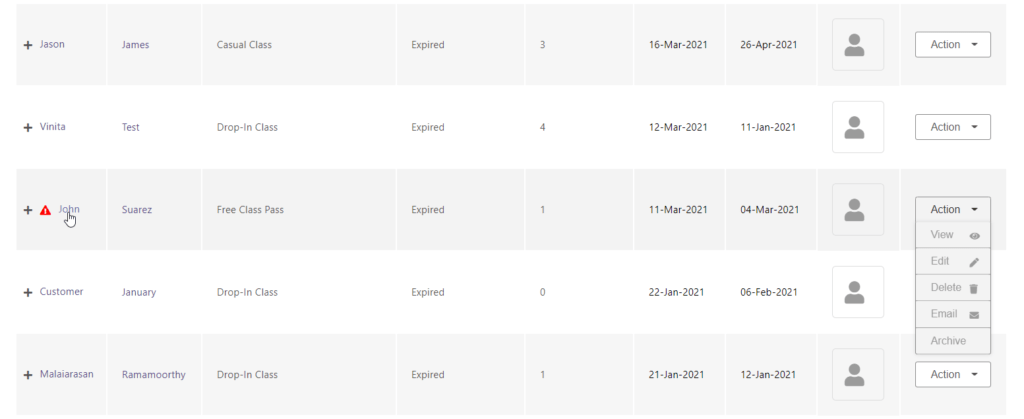
  3. Click their name to open the profile.
CoreBookings Clients list with search and client rows
Find the client in Clients

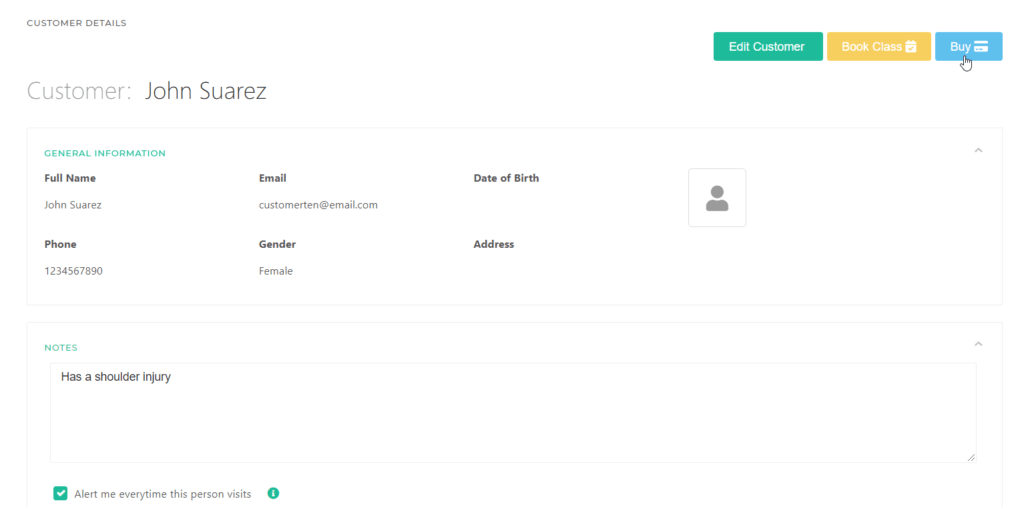
On the profile, use Sell Pass in the header actions. You can also review existing products under Active Passes.

Client profile showing Sell Pass button and Active Passes
Sell Pass on the client profile

Sell or give a pass (Point of Sale) #

  1. Click Sell Pass. The Point of Sale dialog opens with the client already selected.
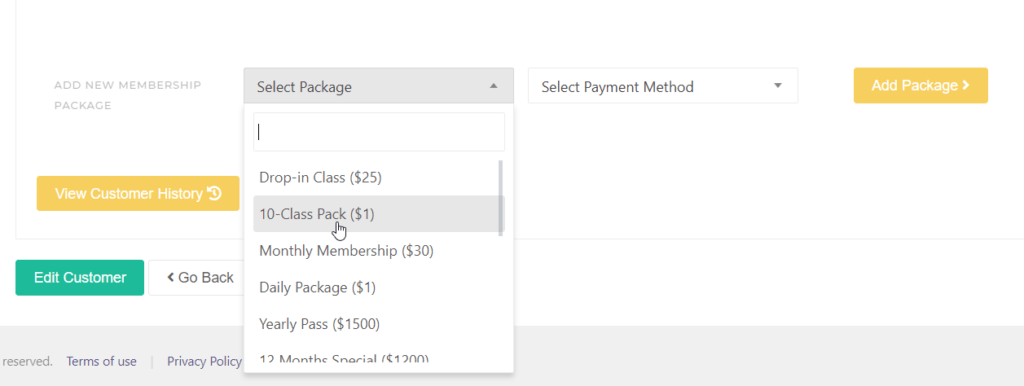
  2. Open Passes & Memberships and select the product to sell or give.
  3. Optionally enter a coupon code and click Check.
  4. Choose a Payment Method.
  5. Confirm the summary, then click Sell for … (or the Free equivalent when giving a complimentary pass).
Point of Sale dialog with pass selected and Cash payment method
Select the pass and payment method in Point of Sale

Only active products from Settings → Passes appear here. Create or activate the pass template first if it is missing from the list.

Payment methods #

  • Cash, EFTPOS, External — desk payments. Counted as sales in reports.
  • Stripe — card payment through your connected Stripe account (prompts for card details when needed).
  • Gift Card — redeem a gift card balance toward the sale.
  • Free — complimentary pass (give / complimentary credit). Not counted as a paid sale.

Choose Free when you want to give a pass without charging. Choose Cash, EFTPOS, or External when the client pays at the desk without using Stripe.

Other ways to open POS #

  • POS in the top header — search for the client, then select the pass.
  • From Class Schedule when adding a client with no active pass — use Purchase Pass / Register & Sell Pass, then complete POS and book them into the class.

Related help #