KRIYA allows you to add promo/coupon/discount codes with which your customers can avail themselves of a special discount other than any special price.
This will give you a chance to make customers feel special.
You can create, modify and delete these promo codes as and when you want. It’s all up to you how to use the codes and to whom you want to give.
Create Discount Codes #
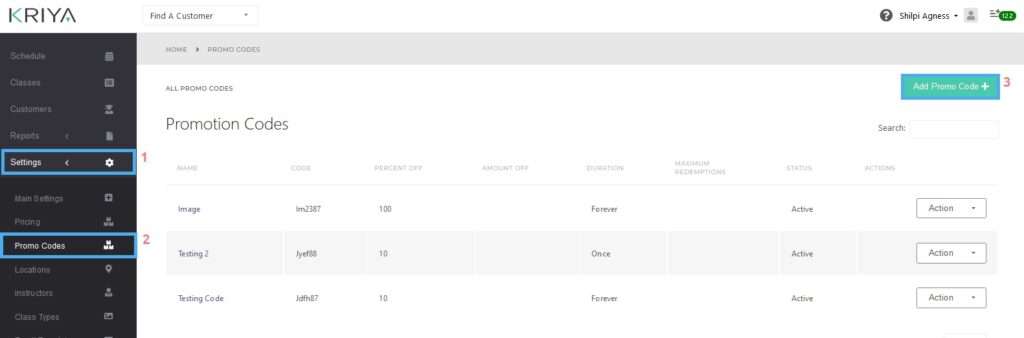
Head to Settings—in the KRIYA Dashboard, then to Promo Codes.
Click on the Add Promo Code button in the top right corner. This will take you to the code creation page, where you have the fields to make a promo code. Let us see what are those.
Name #
Enter the name of the Code here. For example, “Christmas Special 5% Discount Code.”
Code #
Enter the actual code here. E.g. “XMAS5”
Type #
Here, you must select how the discount is calculated—i.e., as a Percentage or as a Fixed amount.
For example, if you select a percentage, a discount will be calculated based on the amount. A 5% discount on a $20 pass will give a $1 discount. A fixed discount of $2 will make the final price of $20 to be $18.
Percentage Off / Discount Amount #
Enter the percentage off for this coupon code as a number; you can also use decimals. Don’t put the Percentage (%) sign here. E.g., 5.5 or 10
OR
Enter the Discount Amount as a number. E.g., 10, 50 etc.
Duration #
Please select the duration of the Code, which is the number of days it will work. Either Once or Forever is available for now.
Limit Date Range #
Select this Check box if you want to limit the use of coupons till a date.
For example, if you want to start a code for Christmas by January 1 of next year, then you can use this option.
Redeem By #
If you have selected the—Limit Date Range—Check box, this option will show itself, and then you can choose the date on which this coupon can be used.
Limit Total Number #
Select this Check box if you want to limit the use of this code. E.g., you want this code to be used only 10 times.
Times #
If you have selected the Limit Total Number option, then this option will appear for you. Enter the number in this box. This will specify the number of times the coupon can be used.
Status #
Select the check box to make it active and vice versa.
Submit #
Click on Submit to save the Code and settings.
Edit Discount Codes #
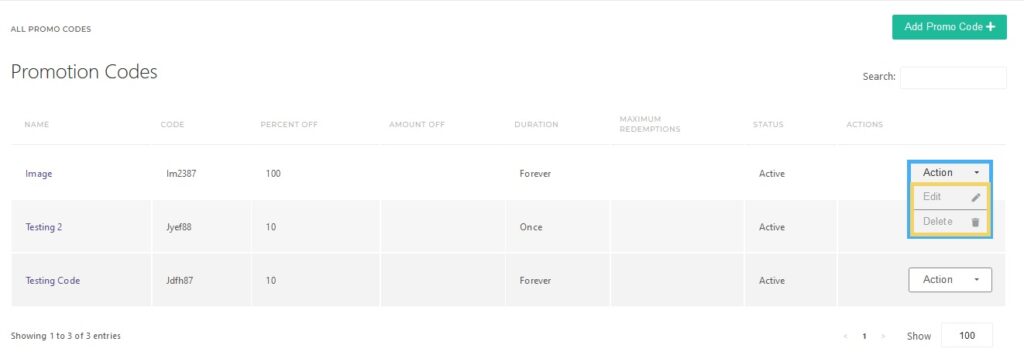
On the Promo Codes page. Click the Actions button of the Code you want to edit, then click Edit.
You can now change any fields stated in the creation points above.
Delete Discount Codes #
On the Promo Codes page. Click on the Actions button of the Code you want to delete and then click on Delete.