Introducing CoreBookings by KRIYA. Same team. More power. Learn more →
View Categories

I'm doing my taxes. How do I find a cash, card, and bank transfer breakdown?

For tax time, use the Transactions report to list sales by date and payment method (Cash, Card, Bank transfer, and others), then download a CSV you can open in Excel or send to your accountant.

Short answer #

  1. Open Reports → Transactions.
  2. Set Start date and End date for the period (for example your financial year).
  3. Open Filters and set Method to Cash, Card, or Bank transfer—or leave Method on All and split the CSV later.
  4. Click Export CSV.
  5. In Excel, use the paymentMethodLabel (and taxAmount) columns to total or pivot the data.

Open the Transactions report #

Where: Reports → Transactions

  1. In the left sidebar, open Reports.
  2. Click the Transactions tile (or View report).
CoreBookings Reports and Analytics page with Transactions tile
Open Transactions from the Reports hub

Set the date range #

  1. Click Filters if the filter strip is hidden.
  2. Enter Start date and End date for the tax period.

Dates apply after a short delay. Leave them empty only if you want the default recent range—for a full financial year, set both dates explicitly.

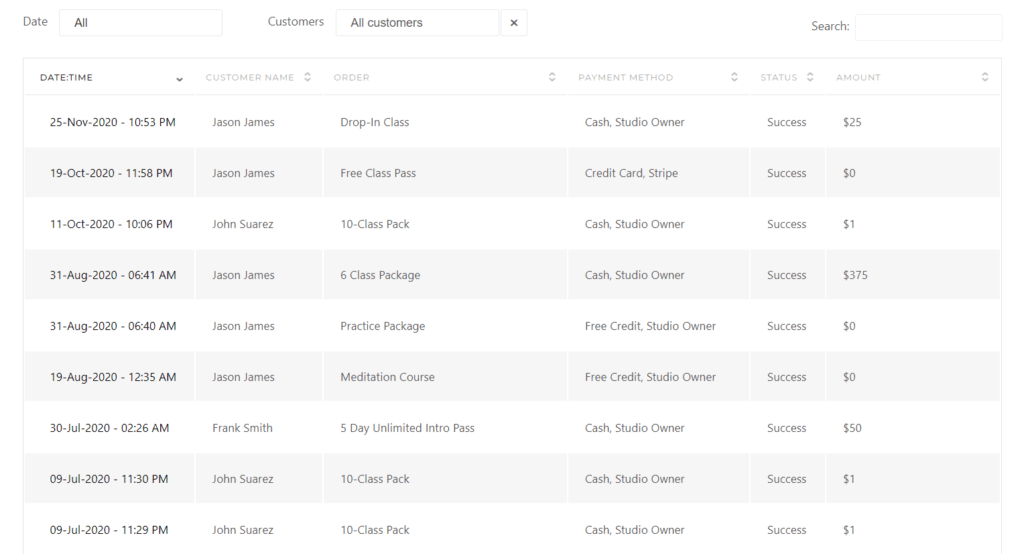
Transactions report with Start date, End date, Method filter, and Export CSV
Date range, Method filter, and Export CSV on the Transactions report

Filter by payment method #

In the filter strip, open Method. Options depend on methods present in the loaded data, and commonly include:

  • Cash
  • Card (card / credit card payments)
  • Bank transfer
  • Other methods your studio uses (for example EFTPOS), when they appear in the list

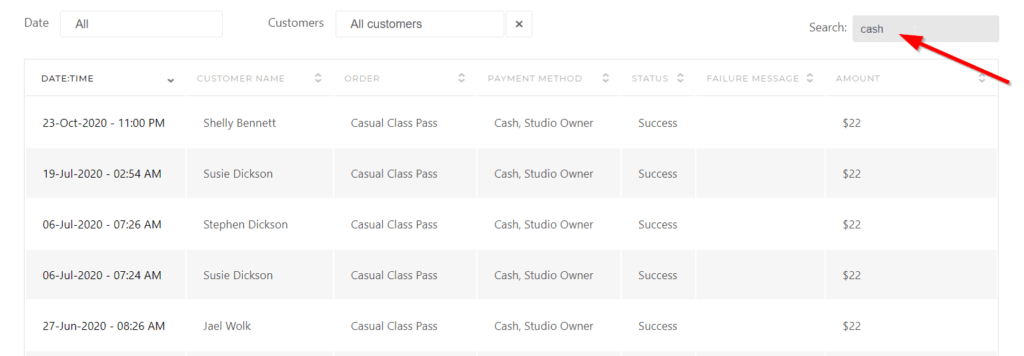
To export one method at a time (for example all cash):

  1. Set Method to Cash.
  2. Export CSV.
  3. Change Method to Card or Bank transfer and export again.

Or leave Method on All, export, and group by paymentMethodLabel in Excel.

You can also use Search transactions… for a customer, pass name, or status if you need a narrower list. Expand a row to see Method, Tax, and Stripe receipt links for a single sale.

Expanded transaction row showing Method, Tax, and payment details
Expand a row for method and tax detail

Export CSV #

  1. Apply your date range and any Method filter.
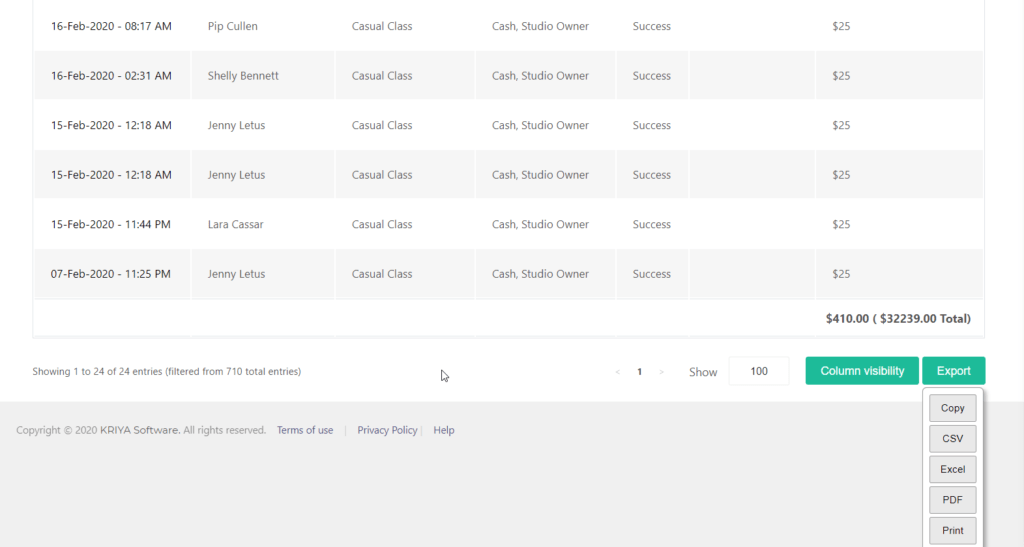
  2. Click Export CSV.

CoreBookings downloads the currently visible (filtered) rows on this page as CSV (not PDF). Use Prev / Next if you need more pages for the same filters, and export again—or tighten the date range so the period fits what you need.

Useful CSV columns for tax work include dateLocal, amount, taxAmount, paymentMethodLabel, status, customerName, and itemName.

Work with the file in Excel #

  1. Open the CSV in Excel or Google Sheets.
  2. Filter or create a pivot table on paymentMethodLabel to total Cash vs Card vs Bank transfer.
  3. Keep or remove columns your accountant does not need.
  4. Prefer rows with status such as succeeded / paid unless you also need failed attempts.

Tax amounts use the rate recorded at charge time where available; older rows may show estimated tax from current settings.

This report is for your studio bookkeeping. It is not a substitute for advice from your accountant or tax agent.

Related help #