Introducing CoreBookings by KRIYA. Same team. More power. Learn more →
View Categories

How to Control Which Passes Can Book a Class?

In CoreBookings you control which passes can book a class by using class types. Each class has a Session Type. Each pass or membership can list which class types it is allowed to use. You do not pick passes on the class edit screen.

Short answer #

To change which passes are valid for a particular class:

  1. Make sure the class uses the correct Session Type when you create or edit it on Class Schedule.
  2. Open SettingsPasses and edit each pass or membership. Use Allowed class types to tick only the formats that pass should cover.
  3. Leave every class type unchecked on a pass if it should work for any class.

Booking checks the class Session Type against each pass Allowed class types. If they do not match, that pass cannot be used for the booking.

Before you start #

Class-type pass restrictions must be turned on for your studio by CoreBookings support. It is available on Growth and Scale plans on request. It is not included on Free Solo or Starter.

If you do not see Allowed class types in the pass editor, contact CoreBookings support. You cannot enable this yourself from Plan & Billing.

Create your class types first under SettingsClass Types (for example Studio Class, Mat Class, Private Session). See passes and memberships for specific class types for the full setup guide.

Assign a class type to the class #

Where: Class Schedule

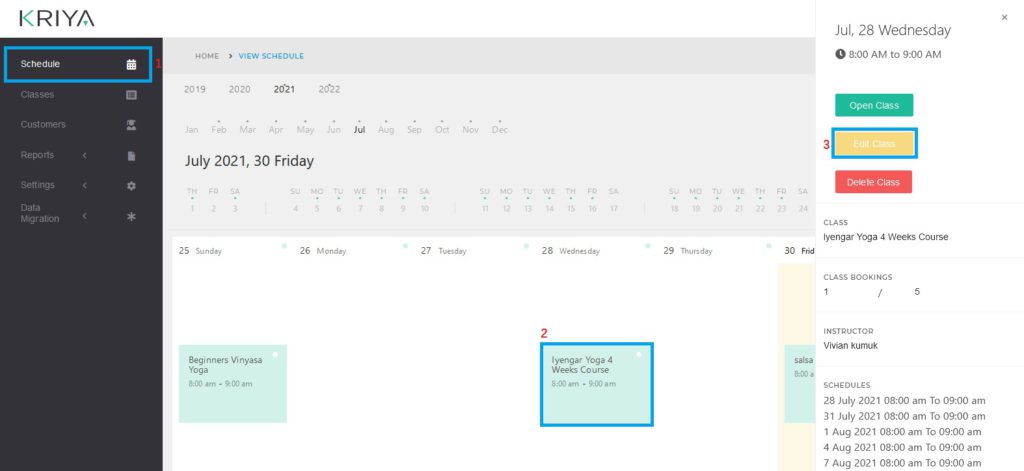
  1. Click Class Schedule in the left sidebar.
  2. Open the class from the calendar, or click Add New Class to create one.
  3. On the class form, choose the matching Session Type. This is the class type used when checking pass restrictions.
  4. Save or update the class.

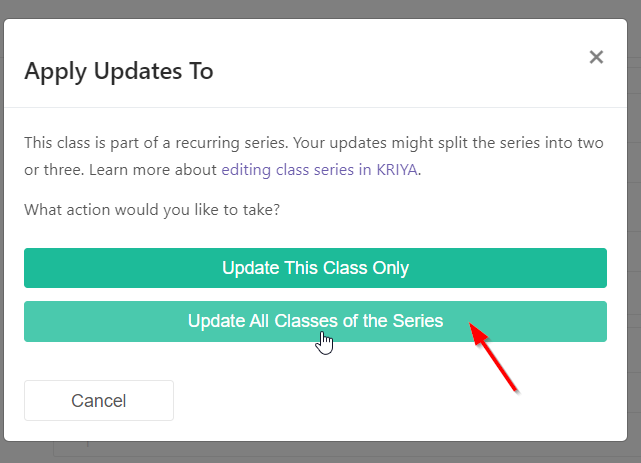
Every class in that series should use the same Session Type if they should accept the same passes. When editing a recurring class, choose whether to update this session only or future sessions.

CoreBookings Create Class dialog showing Session Type
Choose Session Type so bookings use the right pass rules

Restrict passes by class type #

Where: Settings → Passes

  1. Click Settings, then Passes to open Passes & Memberships.
  2. Click Edit on a pass or membership, or + Create Pass for a new product.
  3. Scroll to Allowed class types (shown when the feature is enabled for your studio).
  4. Tick only the class types this pass should cover. Untick or leave unchecked any type it should not book.
  5. Click Update Pass or Create Pass.

To allow a pass for every class, leave all class types unchecked. To limit it to one format, tick only that type.

CoreBookings pass editor with Allowed class types section
Set which class types each pass can book

Example: studio classes only #

Suppose your Monday morning class should accept a 10-visit studio pass but not a mat class pack:

  1. Edit the Monday class and set Session Type to Studio Class.
  2. Edit the 10-visit studio pass. Under Allowed class types, tick Studio Class only.
  3. Edit the mat class pack. Tick Mat Class only (or leave Studio Class unchecked).

Clients booking the Monday studio class will only see passes that allow Studio Class. Staff see the same rules when adding a client from the schedule.

How restrictions work at booking time #

  • CoreBookings compares the class Session Type with each pass Allowed class types.
  • If the pass does not allow that type, it will not be offered for the booking. Sell or assign a matching pass instead.
  • Restrictions apply to visit packs and recurring memberships.
  • You cannot restrict a pass to one specific date or time without using class types. Group similar classes under one type if they should share the same pass rules.

Feature availability #

Allowed class types is available on Growth and Scale plans, enabled on request. Contact CoreBookings support to have class-type pass restrictions turned on for your studio.

Related help #