
Sometimes you may want to download a list of ALL (or part of) your customers. Here is how you do it.
To download the Excel sheet with all or part of your customers you can follow the steps below.
- Head on to Customers on the left Menu
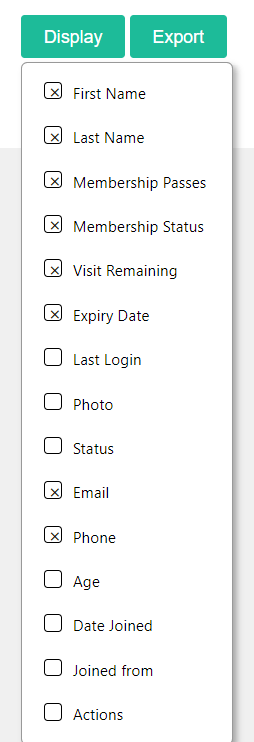
- Your list of customers page will open. Is important to note that what you see is what you will export. You can filter your customers using the Search box and also Display (see the image below).
- Scroll down this page.
- You will find two buttons in the end: —[Display]— and —[Export]—
- If you click on [Display] you can select which fields or data you would like to show or hide.
- To export the list of customers click on [Export] button. There will be two options here: CSV file OR Excel sheet.
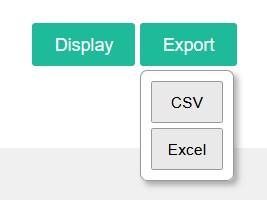
CSV (recommended): A file that stores tabular data (numbers and text) in plain text. Each line of the file is a data record. Each record consists of one or more fields, separated by commas. The use of the comma as a field separator is the source of the name for this file format. Files in the CSV format can be imported to and exported from programs that store data in tables, such as Mailchimp, Microsoft Excel or OpenOffice.
Excel: It is an XLS file format which is an Excel Sheets binary file format which holds information about all the worksheets in a file, including both content and formatting.
It’s your choice to export your data and then use your records to import into a third-party program or share.
Note: Please navigate and export from all the pages, as by default 50 students are shown on a single page.


