Introducing CoreBookings by KRIYA. Same team. More power. Learn more →
View Categories

What is included in the booking confirmation email?

When a client books a class, CoreBookings can send a booking confirmation email. You control whether it sends under Settings → Notifications, and you can preview the layout under Settings → Email Templates.

Short answer #

  • The email confirms the booking with class name, date and time, and pass details when relevant.
  • Toggle Booking confirmation under Settings → NotificationsCustomer Notifications.
  • Preview (not fully edit) the template under Settings → Email Templates.
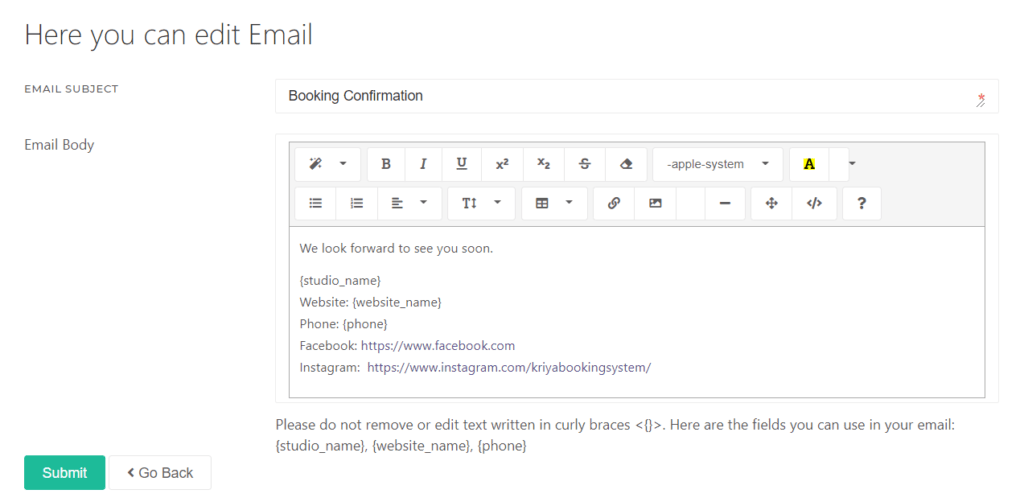
  • Add optional studio wording with Booking confirmation note on the Notifications page.

What the email includes #

  • Subject like Booking confirmed – {studio}
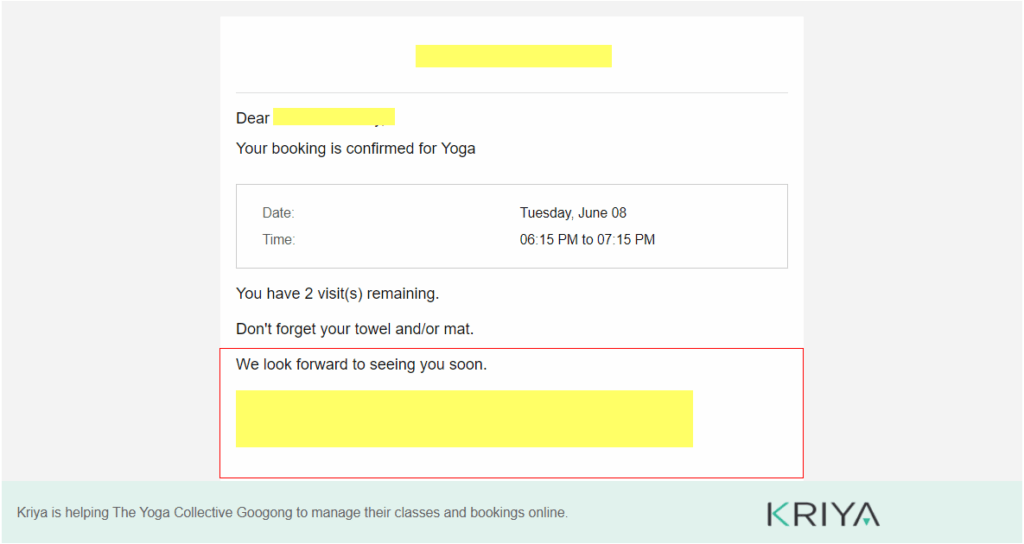
  • Heading: Your booking is confirmed
  • Class, Date & time, and Pass (with visits remaining when applicable)
  • Optional Studio note if you set one
  • Footer guidance about managing bookings, cancellation windows, and contacting the studio
Booking confirmation email template preview
Booking confirmation template preview

Cancellation emails are separate from booking confirmation. Booking confirmation is sent when a booking is created.

Turn it on or off #

Where: Settings → Notifications

  1. Go to SettingsNotifications.
  2. Under Customer Notifications, find Booking confirmation.
  3. Turn the toggle on or off. It is on by default.
Notification Settings showing Booking confirmation toggle
Booking confirmation under Customer Notifications

To receive copies of client emails yourself, add addresses under Email ConfigurationBCC Emails on the same page.

Preview the template #

Where: Settings → Email Templates

  1. Go to SettingsEmail Templates.
  2. Open Booking confirmation (category Bookings).
Email Templates catalogue in Settings
Email Templates catalogue

Templates are managed by CoreBookings and are preview only—you cannot rewrite the full HTML layout. Use the booking confirmation note for studio-specific wording.

Add a studio note #

  1. Open SettingsNotifications.
  2. Find Booking confirmation note.
  3. Enter your message (shown as Studio note in the email) and save.

Related help #