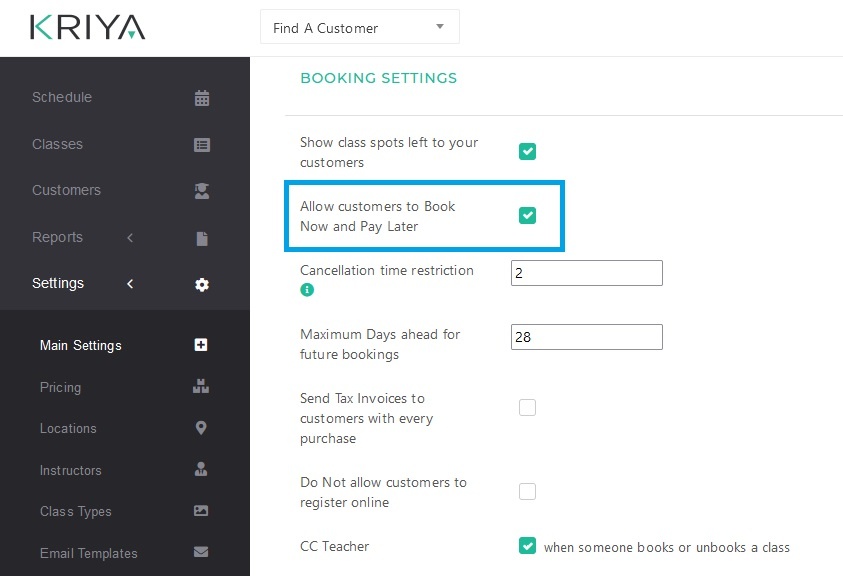
Yes. When Pay Later is enabled for your studio, clients who have no active pass can book a regular class without paying upfront. They pay at the studio later.
Pay Later is not a checkbox in Settings. CoreBookings enables it for your studio on request (see below).
Short answer #
- Pay Later must be enabled for your studio. Contact CoreBookings support to turn it on.
- Clients with no active pass can book a regular class online or in the mobile app and pay at the desk.
- Staff can add clients with Pay Later from the class schedule when the client has no usable pass.
- Workshops are excluded. Pay Later applies to regular classes only.
- Unpaid visits are capped. Each studio has a maximum number of unpaid class credits a client can hold at once.
How to enable Pay Later #
Unlike older booking systems, CoreBookings does not offer a self-service checkbox under Settings → Business to turn Pay Later on or off.
To use Pay Later:
- Confirm your plan includes Pay Later. It is available on Starter, Growth, and Scale plans on request. It is not included on the Free Solo plan.
- Contact CoreBookings support and ask to enable Pay Later for your studio.
- CoreBookings will enable the feature and set your studio’s unpaid class credit limit.
Once enabled, Pay Later is active for your whole studio. You do not need to change any dashboard setting each time.
What clients see #
When Pay Later is enabled and a client has no active pass, they may see Book now, pay later when booking a regular class in the CoreBookings mobile app or online schedule.
That option lets them reserve a spot and settle payment at the studio. They still receive a booking confirmation email when booking confirmations are enabled.
Clients who already hold an active pass must use that pass to book. Pay Later is only offered when they have no passes at all, not when they have a pass that fails class-type or term restrictions.
Adding clients with Pay Later (staff) #
Where: Schedules → open a class → Add Client
When Pay Later is enabled and the class is a regular class (not a term-only class or workshop), staff can:
- Search for an existing client with no active pass and choose Add with Pay Later
- Register a walk-in and choose Register & Add with Pay Later
- Use Add with Pay Later from the quick prompt when adding a client who needs a pass

Booking rules and limits #
Pay Later bookings must meet all of these conditions:
- Regular classes only. Workshops and retreat bookings require payment or a saved card first.
- No active pass. The client must not hold any active pass on their account.
- Available spot. The class must have capacity. Pay Later cannot overfill a full class.
- Debt cap. Each client can only accumulate unpaid class credits up to your studio’s limit (commonly 10 credits). Once they reach the limit, they must settle at the desk before booking again with Pay Later.
- Non-term classes. Pay Later is not offered for classes that belong to a term requiring a term pass.
If a booking is blocked, the client or staff member sees a message explaining whether the class is full, Pay Later is unavailable, or the unpaid limit was reached.
Finding clients with outstanding balances #
Where: Clients → enable the Pay Later filter → Outstanding balances only
This list shows clients who owe class credits from Pay Later bookings. Their client profile also shows how many class credits are owed at the desk.

Settling Pay Later visits #
When the client is ready to pay, open their profile and use Collect payment to clear outstanding Pay Later class credits. See How do I settle a Pay Later visit? for step-by-step instructions. You can sell a pass separately if they also want credits for future classes.