Introducing CoreBookings by KRIYA. Same team. More power. Learn more →
View Categories

How to Increase or Decrease Classes Visible on the Timetable?

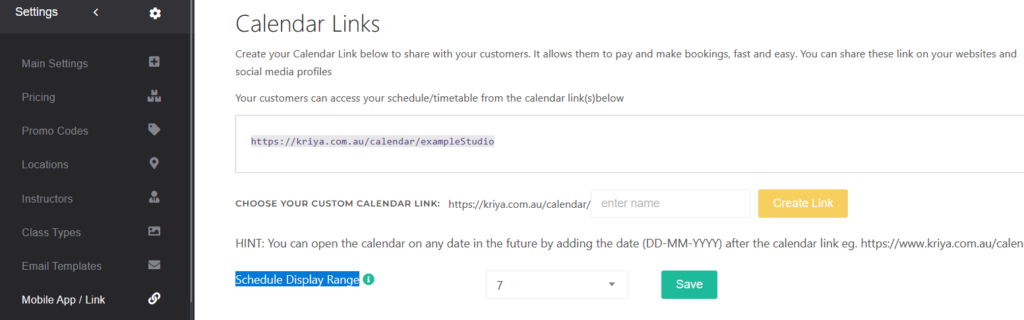
Clients see your classes on your public booking page, embedded website schedule, and the CoreBookings mobile app. How many days appear at once depends on which view they use. You can widen the default website view, and clients can always move forward to later dates.

Short answer #

  • Website embed: SettingsAdd to WebsiteLayout → choose Day view (one day) or Week view (seven days)
  • Public booking page: clients use Today, This week, and the date arrows to browse other days or weeks
  • Mobile app: the studio schedule shows the next 7 days by default
  • Maximum Booking Days (under SettingsBusiness) controls how far ahead clients can book, not how many days fit on screen at once

Website embed: day or week view #

If you embed your timetable on your own website, choose how much of the schedule clients see when the page first loads.

  1. Open SettingsAdd to Website.
  2. Find the Layout dropdown.
  3. Select Day view to show one day at a time, or Week view to show seven days in a row.
  4. Check the live preview, then copy the updated embed code if you changed the layout.

Day view suits studios that want a focused daily list. Week view shows more classes at once and matches how many clients expect a timetable to look.

CoreBookings Add to Website settings with Layout set to Week view
Set Layout to Week view to show seven days of classes in your website embed

Browse dates on the public schedule #

Your Public URL (from SettingsBusiness) uses the same schedule as the website embed. Even in day view, clients are not limited to today only.

They can:

  • Tap Today or This week to jump back to the current period
  • Use the and arrows to move to the previous or next day or week
  • Pick a later date within your Maximum Booking Days window
CoreBookings public schedule in week view with date navigation
Week view on your public schedule shows seven days; clients can move to later weeks with the arrows

Mobile app schedule #

In the CoreBookings mobile app, clients who find your studio see classes for the next 7 days on the schedule screen. They can scroll through that list and open a class to book.

CoreBookings mobile app studio schedule showing upcoming classes
The mobile app lists upcoming classes for the next seven days

If a client needs dates beyond that window, share your Public URL or embedded website schedule so they can browse further ahead.

Not the same as Maximum Booking Days #

Maximum Booking Days under SettingsBusinessScheduling & Policies sets how far into the future clients can complete a booking. The default is 28 days.

That setting does not change whether your embed opens in day or week view. A class may appear on the timetable but still be outside the booking window if you have not scheduled it within your maximum booking range.

See How long in advance can my customers book classes? for full details.

Related help #