Introducing CoreBookings by KRIYA. Same team. More power. Learn more →
View Categories

How to run live classes using Zoom or Google Meet and how to share the class link with my students or clients?

Yes. You can run live online classes alongside in-studio classes in CoreBookings. CoreBookings handles bookings and capacity. You host the video meeting in Zoom, Google Meet, Skype, Webex, or another tool, then share the link with booked clients using Email attendees.

Before you start #

You will need:

  • A CoreBookings studio with at least one room under SettingsLocation
  • Classes on Class Schedule (/schedules)
  • An account with your chosen video platform (for example Zoom or Google Meet)

How online classes work in CoreBookings #

CoreBookings does not stream video or connect directly to Zoom, Google Meet, Skype, or Webex. There is no per-class meeting link field that is sent automatically when someone books.

Instead, you:

  1. Schedule online classes in CoreBookings (usually in an Online room).
  2. Create the meeting in your video platform.
  3. Email the link to everyone booked into that class with Email attendees.

The studio-wide Booking confirmation note under SettingsNotifications is added to every booking confirmation email. It is useful for general instructions, but not for class-specific links that change each week.

Choose your video platform #

Set up and host your live class in the tool your clients already use. Common options include:

  • Zoom
  • Google Meet
  • Microsoft Teams
  • Skype
  • Cisco Webex

Create a recurring or one-off meeting in that platform, then copy the join link. You will paste it into the Email attendees message in CoreBookings.

Create an Online room and schedule live classes #

Where: Settings → Location, then Class Schedule

Add a dedicated Online room so remote bookings stay separate from your physical studio capacity. See How to create a room or location for full steps.

Then schedule your live class:

  1. On Class Schedule, click Add New Class.
  2. Choose Session Type, Teacher, Date, Start Time, and End Time.
  3. Set Room to Online (or your online room name).
  4. Set Capacity to your remote limit.
  5. Click Create Class.
CoreBookings Create Class dialog with Online room selected
Assign online classes to your Online room with its own capacity

Clients book the online class on your timetable like any other class. If you also teach in the studio, create a separate in-studio class or see How to run studio and online classes at the same time.

Share meeting links with Email attendees #

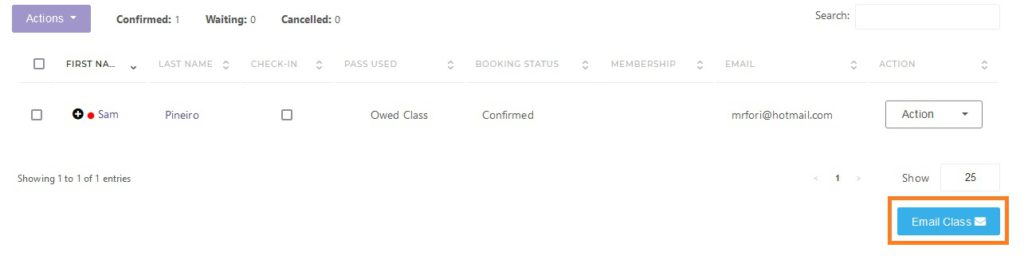
Send your Zoom, Google Meet, or other meeting link to everyone booked into the class using Email attendees. The Actions menu appears on the class detail page once at least one client is booked in.

  1. On Class Schedule, open the online class.
  2. Under the Bookings tab, open the Actions menu.
  3. Click Email attendees.
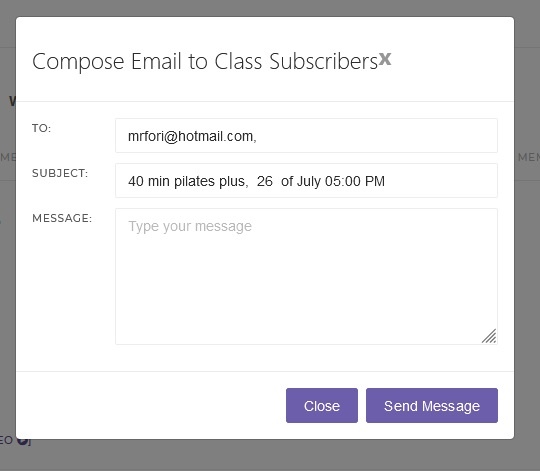
  4. In the Email class attendees dialog, complete Subject and Email body. Paste your meeting link in the body.
  5. Optionally add Preview text. You can use merge tags {{first_name}} and {{studio_name}}.
  6. Click Review & Send, then Send email.
CoreBookings Email class attendees dialog with Subject, Preview text, and meeting link in the email body
Paste your meeting link in the email body before sending

The email goes to clients booked into that class who have a valid email address. Cancelled and waitlisted clients are not included.

Send the link as soon as bookings open, or a day before class, so clients have the join details in advance.

Send updates when the link changes #

Use Email attendees again whenever you need to reach everyone on the booking list. This is useful when:

  • The meeting link changes
  • Class starts late or finishes early
  • You need to send last-minute instructions

Open the same class, choose ActionsEmail attendees, write your update, and send.

Related help #

Need help? Email support@kriya.com.au.