
If you need to stop accepting payments through CoreBookings, or switch to a different Stripe account, disconnect Stripe from your studio dashboard. The recommended way is to use the Disconnect button on the Payment Settings page.
Before you disconnect #
Where: Settings → Payments
Disconnecting Stripe has these effects:
- Clients will not be able to buy passes or memberships through the CoreBookings mobile app until you reconnect.
- Point-of-sale card payments in the studio dashboard will not work until Stripe is connected again.
- Existing client memberships billed through Stripe are not automatically cancelled when you disconnect. Manage those subscriptions in your Stripe Dashboard if needed.
- Payouts already processed to your Stripe account are not reversed by disconnecting.
Only disconnect if you are ready to pause or stop accepting new payments through CoreBookings.
Disconnect from CoreBookings #
- Open Settings and go to Payments.
- On the Payment Settings page, find the Stripe Payment Processing card.
- If Stripe is connected, you will see Stripe Account Connected with a Connected badge.
- Click Disconnect.
- Confirm when prompted: Are you sure you want to disconnect your Stripe account? This will prevent you from accepting payments.
CoreBookings disconnects your Stripe account and refreshes the page. You will see Stripe Account Not Connected with a Not Connected badge.
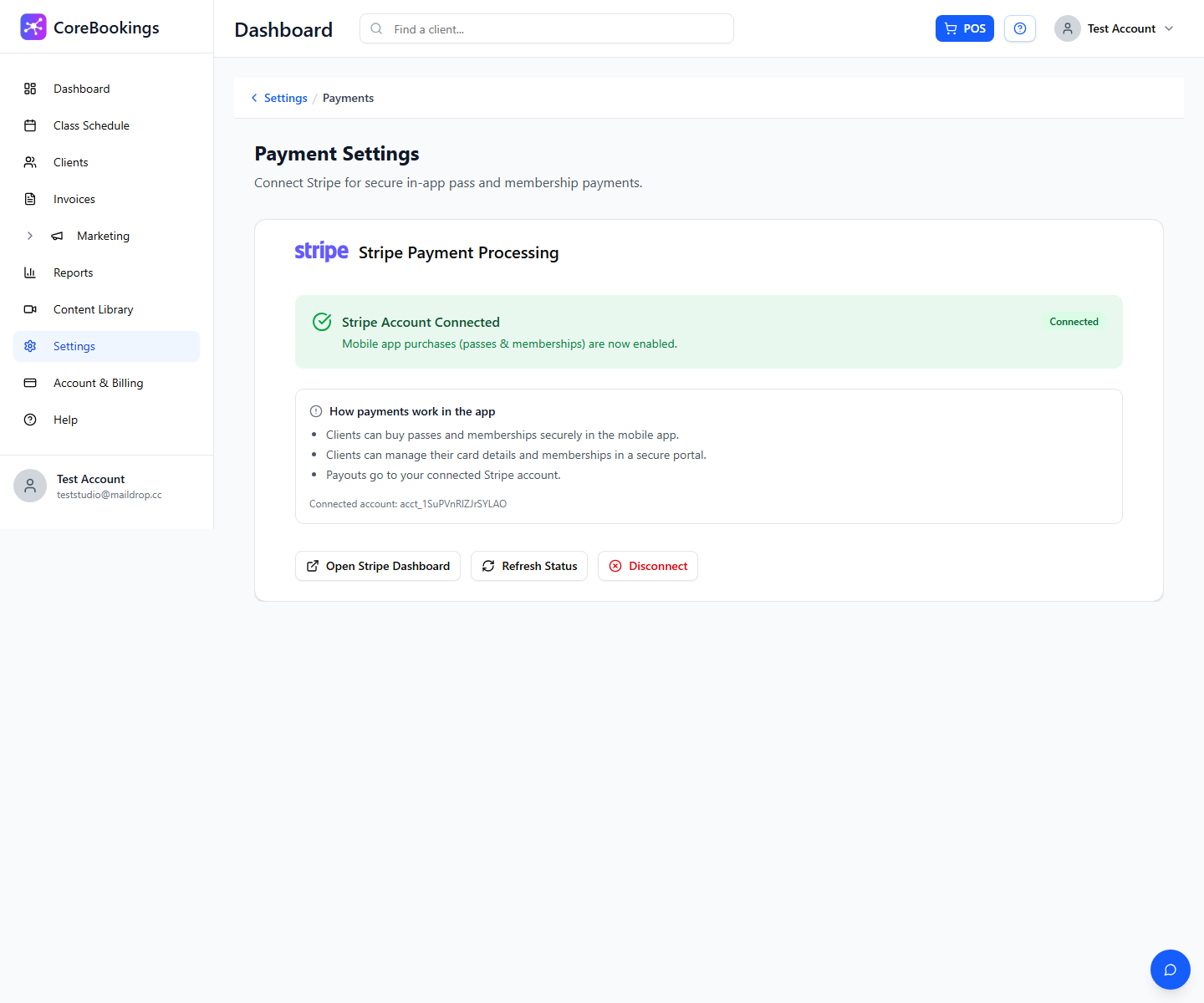
While connected, you can also use Open Stripe Dashboard to manage payouts and subscriptions in Stripe, or Refresh Status if you have just finished connecting.
What happens after you disconnect #
After disconnecting:
- New pass and membership purchases in the mobile app are blocked.
- New card payments through the studio dashboard are blocked.
- Your studio onboarding checklist will show Stripe as not connected until you reconnect.
- Historical payment records in CoreBookings remain available for reporting.
Reconnect Stripe #
To accept payments again, return to Settings → Payments and click Connect Stripe Account. You will be redirected to Stripe to complete the connection.
To use a different Stripe account, disconnect first, then connect again and sign in with the new Stripe login when prompted.
Revoke access from Stripe (alternative) #
You can also revoke CoreBookings access directly in Stripe:
- Log in to your Stripe Dashboard.
- Go to Settings → Connect (or Authorised applications on older Stripe layouts).
- Find CoreBookings in the list of connected applications.
- Click Revoke access (or equivalent) and confirm.
This removes the connection from Stripe's side. CoreBookings may still show Stripe as connected until you click Refresh Status on the Payment Settings page, or use Disconnect in CoreBookings to clear the status.
Using Disconnect in CoreBookings is the simplest option because it updates your studio immediately.


