
CoreBookings sends booking confirmations, receipts, reminders, and other automated emails to your clients. It does not include a full sent-email inbox inside the dashboard. This article explains where to find copies of outgoing emails and how to keep a record for your studio.
Is there a sent email inbox? #
No. CoreBookings does not have a global Sent folder like Gmail or Outlook where you can browse every email the system has sent.
Instead, you can:
- Preview all automated client email templates under Settings → Email Templates
- BCC copies of automated client notification emails to your own inbox
- View marketing send history for newsletters and SMS campaigns
- Check confirmation or receipt email status on a client's Activity tab
- Resend some individual emails (for example receipts or invoices) when needed
One-off messages such as Email attendees from a class on the schedule are sent immediately and are not stored as a browsable thread in the dashboard. Set up BCC before sending if you want a copy in your own mailbox.
View email templates #
All automated client email templates are in one place:
- Open Settings → Email Templates.
- Browse templates grouped by workflow (for example bookings, waitlists, payments, account, and memberships).
- Select a template to preview the subject line and email content with sample client data.
This page shows template previews, not a log of emails already sent to a specific client. To keep copies of outgoing emails in your own inbox, set up BCC Email Addresses under Settings → Notifications (see below).
Templates on this page are managed by CoreBookings and cannot be edited here. To turn client notifications on or off, use Settings → Notifications.
Get copies with BCC Email Addresses #
The easiest way to keep a record of outgoing client emails is to BCC a shared studio inbox.
- Open Settings → Notifications.
- In the Email Configuration section, find BCC Email Addresses.
- Enter one or more email addresses, separated by commas (for example
owner@studio.com, frontdesk@studio.com). - Changes save automatically when you leave the field.
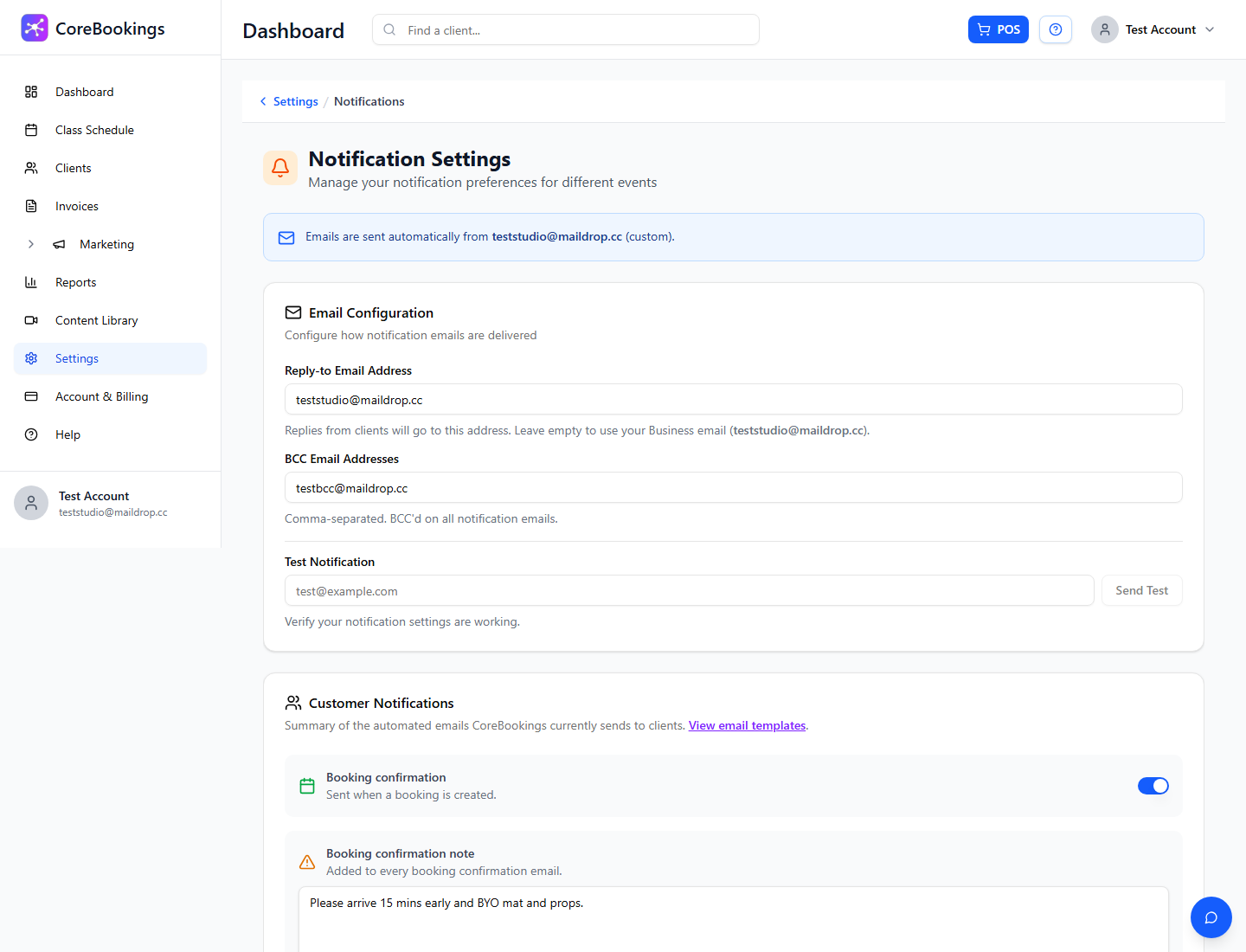
Addresses in BCC Email Addresses receive copies of automated notification emails sent to clients, such as booking confirmations, cancellations, receipts, welcome emails, and membership updates.
Tip: Use a shared team inbox (not a personal address) so anyone on staff can follow up. BCC copies are sent even when individual Studio & Owner Notifications toggles are turned off.
Studio and teacher notification emails #
On the same Settings → Notifications page you can control who receives direct notification emails (separate from BCC copies):
Studio & Owner Notifications — emails sent to your studio when client activity occurs, including:
- New booking notifications
- Booking cancellation notifications
- Other studio alerts (for example new client sign-ups and payment events)
Teacher Notifications — optional emails to the assigned teacher when clients book or cancel their class:
- Email teacher on booking
- Email teacher on cancellation
These emails go to the teacher's email address on their profile, not to a sent folder inside CoreBookings.
Marketing newsletters and SMS campaigns #
For bulk marketing messages, CoreBookings keeps a send history:
- Marketing → Newsletters — lists each newsletter with its sent date and delivery stats (for example 45/50 sent).
- Marketing → SMS campaigns — lists each SMS campaign with status, sent date, and recipient counts.
Open a newsletter or campaign to see more detail. This is the place to check what was sent and when, not a full copy of every message body in an inbox.
Check status or resend a specific email #
For individual client emails:
- Open the client's profile → Activity tab. In Activity Timeline, booking entries can show Confirmation email: with the client's address and a status such as (sent) or (failed to send). Payment entries can show Receipt email: in the same way.
- On the client's Payment History tab, use Resend receipt for successful payments (when the client has an email address on file).
- On the Invoices page, use Resend email for invoices with status sent or overdue.
If a client says they did not receive an email:
- Confirm their email address on their profile.
- Check the relevant toggle is on under Settings → Notifications → Customer Notifications (for example Booking confirmation or payment receipt emails).
- Ask them to check spam or junk folders.
Related help #
- Emails going to spam: How to whitelist CoreBookings emails
- Turn notifications on or off: Settings → Notifications
- In-app dashboard alerts: Dashboard notifications — how to mark them as read
Need help? Email support@kriya.com.au.


