
Many studios teach the same session to clients in the room and clients joining remotely. CoreBookings does not have a built-in livestream or hybrid class mode, but you can manage bookings, capacity, and communication using rooms, scheduling, and Email attendees.
Before you start #
You will need:
- A CoreBookings studio with at least one room set up under Settings → Location
- Classes on Class Schedule (
/schedules) - A live meeting account outside CoreBookings (for example Zoom or Google Meet) if clients join remotely
CoreBookings handles bookings and capacity. You create and host the live video meeting in your chosen streaming tool.
How CoreBookings handles studio and online classes #
Each scheduled class in CoreBookings has:
- One Room (for example Main Studio or Online)
- One Capacity (max attendees for that class)
- One teacher, start time, and end time
There is no hybrid delivery toggle, Zoom integration, or per-class meeting link field that is sent automatically in booking confirmation emails. Rooms are scheduling labels inside your studio, not virtual meeting spaces.
That means you choose how to split in-studio and online bookings. The two common approaches are below.
Create an Online room #
Where: Settings → Location
Add a dedicated room for remote bookings so online spots stay separate from your physical studio capacity:
- Open Location Settings and scroll to Rooms (single location).
- Click Add room.
- Set Room name to Online (or a name your team recognises).
- Set Capacity to the maximum number of remote attendees you want.
- Optionally add Notes (optional) for internal reminders (for example "Zoom links sent by email").
- Click Create room.
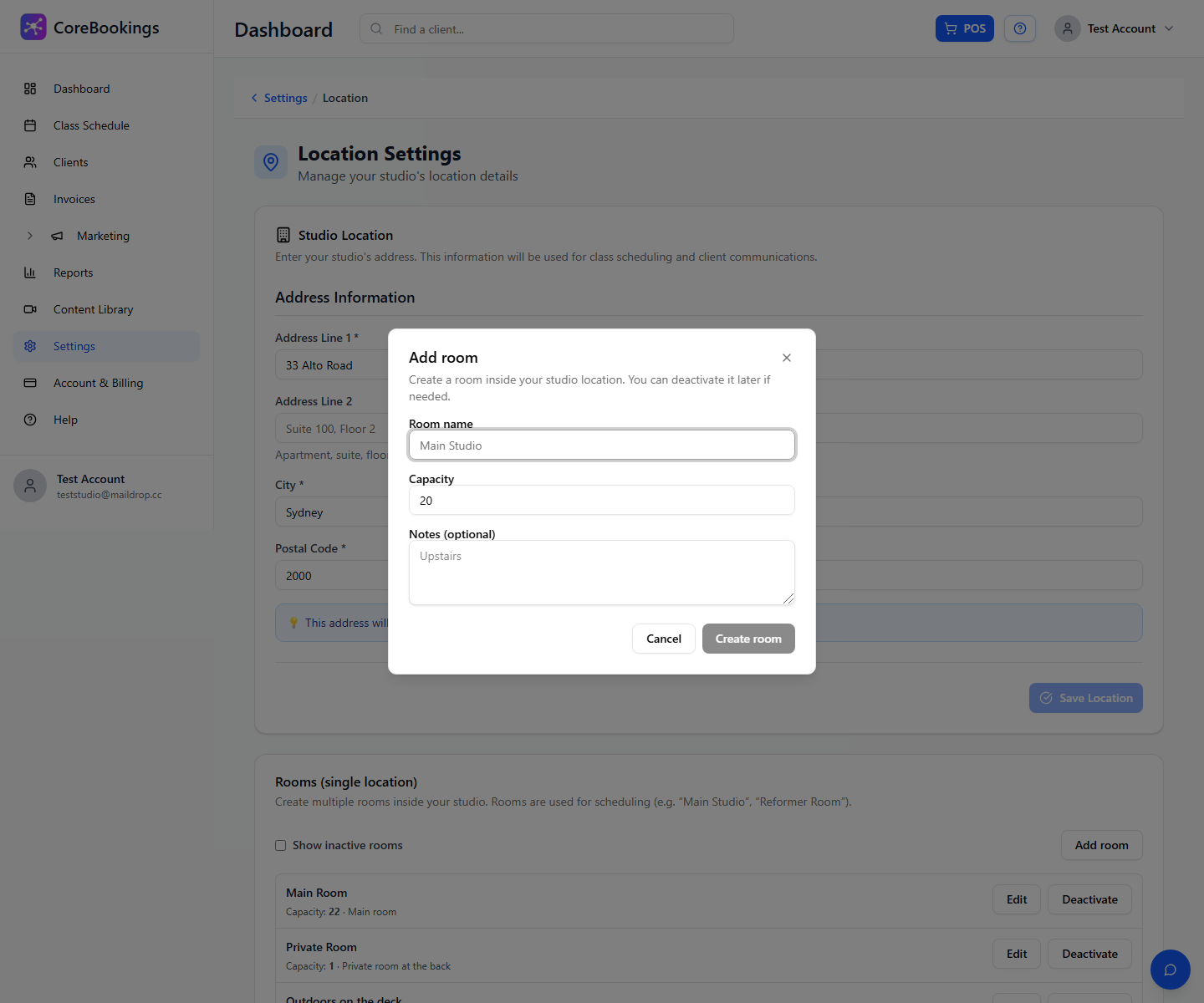
See How to create a room or location for full room management steps.
Schedule separate in-studio and online classes #
This is the recommended setup when clients should book either an in-studio spot or an online spot, with separate capacity for each.
- On Class Schedule, click Add New Class.
- Choose the same Session Type, Teacher, Date, Start Time, and End Time for both classes.
- Create the in-studio class first. Set Room to your physical room (for example Main Studio) and set Capacity to your in-room limit.
- Click Create Class, then Add New Class again for the online version.
- Set Room to Online and Capacity to your remote limit.
- Click Create Class.
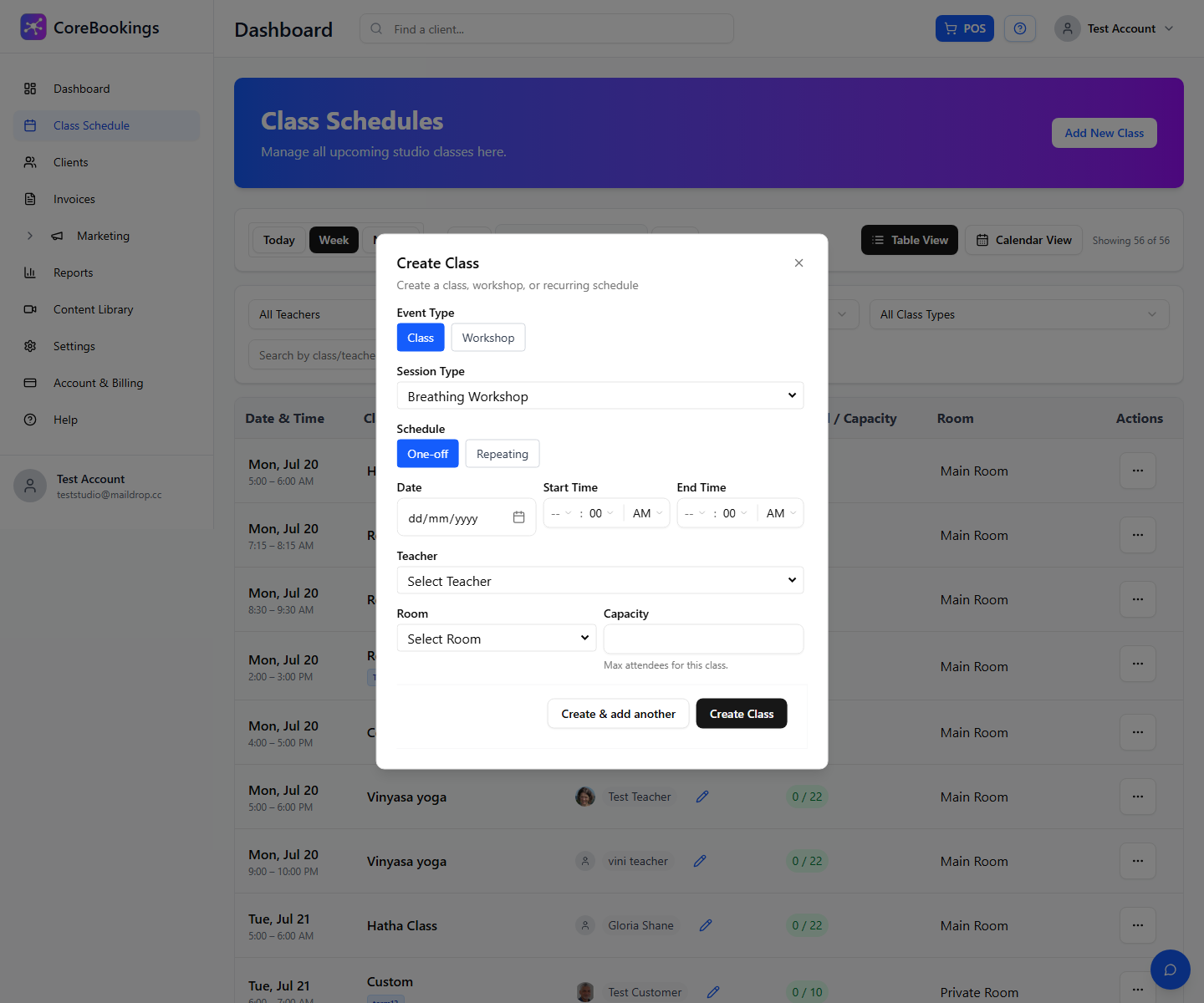
Clients book the class that matches how they attend. You can use class types or pass rules if you want online-only or in-studio-only passes. Both classes appear on the same timetable at the same time, each with its own booking count.
Teach one session to both audiences #
If you teach one live session and some people are in the room while others join on Zoom or Google Meet, use the separate-room approach above at the same time slot. You teach once; CoreBookings tracks who booked in-studio versus online.
Start your meeting in Zoom or Google Meet before class. Remote clients use the link you send (see below). In-studio clients check in as usual on the class attendance list.
CoreBookings does not stream video or attach meeting links to bookings automatically. The Booking confirmation note under Settings → Notifications is added to every booking confirmation email studio-wide, so it is not suitable for class-specific Zoom links that change each week.
Send meeting links to booked clients #
Send Zoom, Google Meet, or other meeting links to everyone booked into a class (or only the online class) using Email attendees. The Actions menu appears on the class detail page once at least one client is booked in.
- On Class Schedule, open the class (usually the Online room class).
- Under the Bookings tab, open the Actions menu.
- Click Email attendees.
- In the Email class attendees dialog, complete Subject and Email body. Paste your meeting link in the body.
- Optionally add Preview text. You can use merge tags
{{first_name}}and{{studio_name}}. - Click Review & Send, then Send email.
The email goes to clients booked into that class who have a valid email address. Cancelled and waitlisted clients are not included.
Send the link again if it changes or you need a last-minute update. Email attendees is available whenever you need to reach everyone on the booking list.
Related help #
- How to create a room or location
- How to run live classes using Zoom or Google Meet
- How does class capacity and room capacity work?
- How to send an email or SMS to clients
Need help? Email support@kriya.com.au.


