
This article explains how to update the payment method for your CoreBookings studio subscription (the plan you pay CoreBookings for). It does not cover client membership or pass payments. Those are managed separately from each client's profile.
Before you start #
Only studio admins can update the CoreBookings subscription payment method. You can do this yourself from Account & Billing. You do not need to email support first.
CoreBookings subscription billing is processed by Stripe. When a payment fails, Stripe may retry the charge automatically. Update your card as soon as possible to keep your paid plan active.
Why subscription payments fail #
Common reasons include:
- An expired or cancelled card
- Insufficient funds
- Your bank declining a recurring charge
- A card that was replaced but not updated in billing
You may receive an email about the failed payment. You can also see a Payment failed banner in the dashboard when your subscription status is past due.
Update your payment method #
- Open Account & Billing in the left sidebar (or Settings → Plan & Billing).
- Go to the Billing tab.
- Click Manage billing (invoices, payment method).
- In Stripe's secure customer portal, update your card or payment method and save.
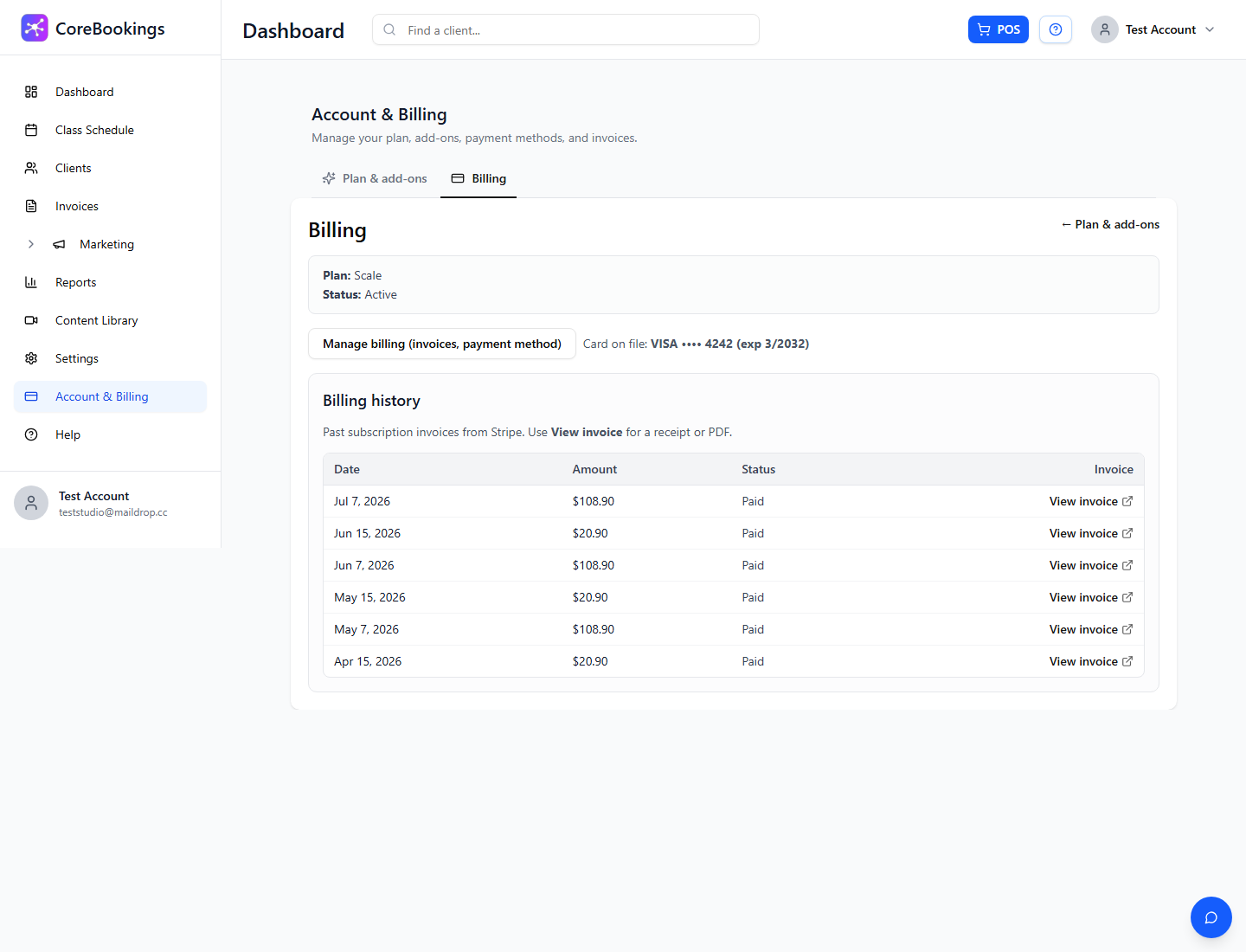
After you save, return to the dashboard. The Billing tab shows your Card on file once the update is complete. Stripe may retry the failed payment automatically.
Use Billing history on the same tab to view past invoices or open View invoice for a receipt or PDF.
Payment failed banner #
If your subscription is past due, open Account & Billing → Plan & add-ons. You will see a red banner titled Payment failed with this message:
Update your payment method to keep your plan active and avoid losing access to paid features.
Click Update payment method to open the same Stripe billing portal. You can also click View billing history to open the Billing tab.
If you see Your billing setup is incomplete, open the Billing tab and use Manage billing (invoices, payment method) to finish setup before pausing or cancelling your subscription.
If you still need help #
Most payment issues are resolved by updating your card in Stripe. If you still cannot update your payment method, email support@kriya.com.au and include:
- Your studio name
- What happens when you try to update payment (including any error message)
- A screenshot if something is not working as expected
Related billing help #
- Pause or cancel your subscription: see How do I cancel my subscription?
- Upgrade your plan: use Available plans on the Plan & add-ons tab
- Download invoices: Account & Billing → Billing → Manage billing (invoices, payment method) or View invoice in billing history
Need help? Email support@kriya.com.au.


