
CoreBookings sends booking confirmations, receipts, password resets, and other notifications by email. Your email provider (Gmail, Microsoft Outlook, Yahoo, and others) may filter these messages into Spam or Junk before they reach your inbox.
If you or your clients cannot find a CoreBookings email, check the spam or junk folder first. Then whitelist the CoreBookings sending address so future messages arrive in the inbox.
Why CoreBookings emails go to spam #
Email providers scan incoming mail for spam, phishing, and viruses. Automated messages such as booking confirmations are sometimes flagged incorrectly, especially if:
- It is the first email you have received from CoreBookings or your studio
- You have previously marked similar messages as spam
- Your inbox has strict filtering rules
- The message landed in a filtered tab (for example, Gmail Promotions)
Whitelisting tells your email provider that messages from CoreBookings are safe and should be delivered to your inbox.
What to whitelist #
CoreBookings sends automated emails from:
noreply@mail.kriya.com.au
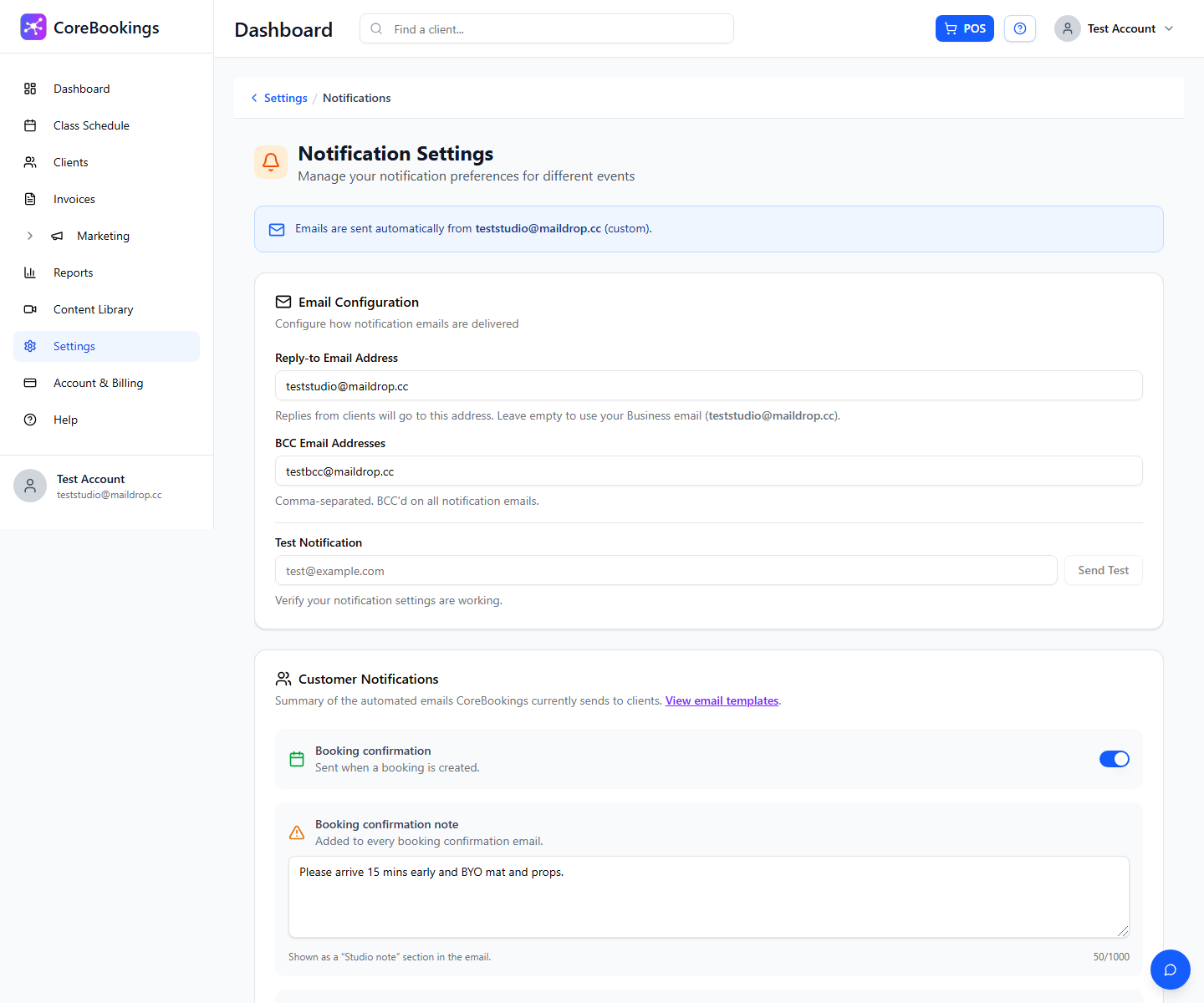
The sender name usually shows your studio name and CoreBookings (for example, Your Studio Name via CoreBookings). Replies go to your studio's reply-to address if one is configured in Settings → Notifications.
Add these to your safe senders or trusted list:
- The email address noreply@mail.kriya.com.au
- The domain mail.kriya.com.au
If you find a CoreBookings email in spam or junk, open it and choose Not spam or Not junk. That helps your provider learn for next time.
Gmail #
Follow Google's guide to add a sender to your safe list:
Prevent emails from being marked as spam in Gmail
Also check the Promotions and Spam tabs, and search your inbox for CoreBookings or your studio name.
Outlook, Hotmail, Windows Live Mail, and MSN #
Follow Microsoft's guide to block or allow senders in Outlook and related services:
Block or allow (junk email settings) in Outlook
Add noreply@mail.kriya.com.au to your Safe senders list. In Outlook on the web, you can also right-click a CoreBookings message in Junk Email and choose Mark as not junk.
Yahoo Mail #
Follow Yahoo's guide to create filters and organise your inbox:
Filters and blocked addresses in Yahoo Mail
Create a filter that moves mail from noreply@mail.kriya.com.au to your inbox, or add the address to your contacts.
Tip: Mark all emails from mail.kriya.com.au as safe or trusted so booking confirmations, receipts, and password resets are not missed.
Related help #
- Where can I view sent emails from CoreBookings?
- How to update my login email or password
- How to start taking client bookings
Need help? Email support@kriya.com.au.


