
Use Inactive Clients to see who has not attended a class in a set number of days (or has never attended). Use it for win-back campaigns and follow-ups.
Open the report #
Where: Reports → Inactive clients
- Open Reports.
- Click the Inactive clients tile (or View report).
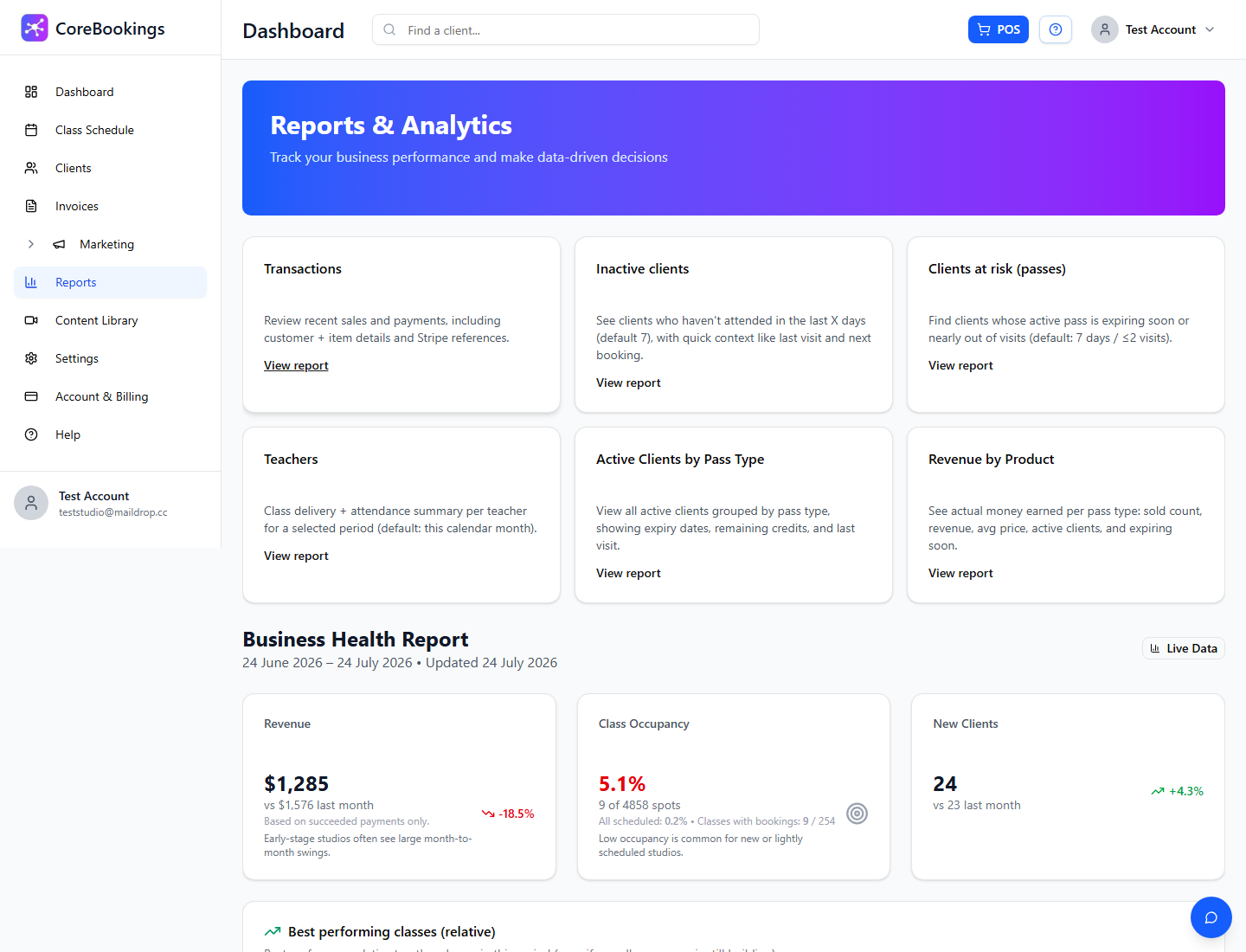
The page title is Inactive Clients.
Set the inactive threshold #
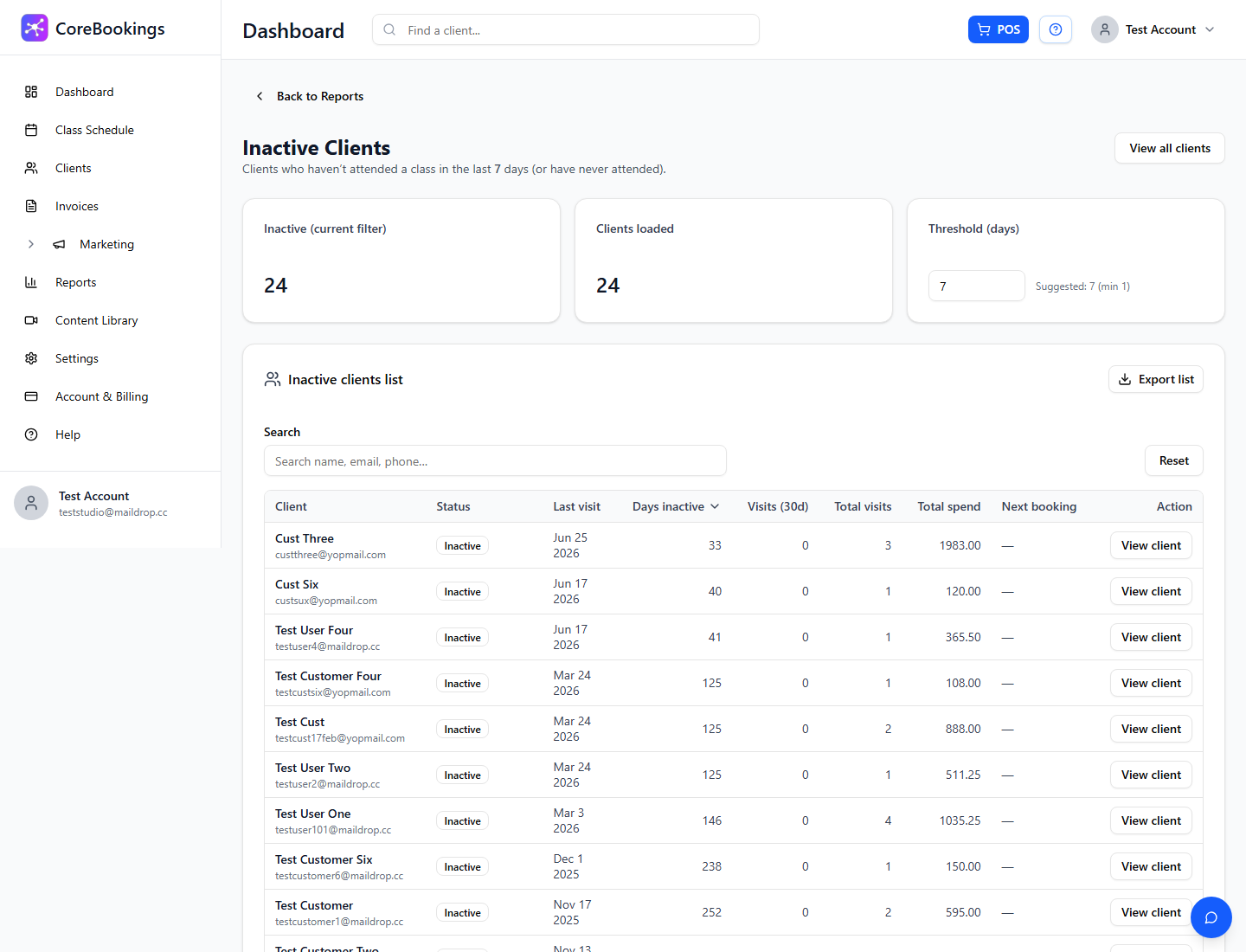
- Threshold (days) — default 7. Clients whose last visit was at least this many days ago (or who have never visited) are listed.
- The summary card Inactive (current filter) shows how many clients match.
Search, sort, and export #
- Search the list by name or email.
- Sort by Days inactive or Total spend.
- Columns include last visit, days inactive, visits in the last 30 days, and next booking when available.
- Use Export CSV (download) to export the filtered list.
- Click a client name to open their profile.


